Compatibility:
WebSite X5 Evo and Pro
Creating a professional website may seem like a complex task, especially if you have no programming skills or web design experience. In reality, with the right tools, you can quickly turn an idea into a complete, responsive website published online.
With WebSite X5, you work in a completely visual way: you choose how to start the project, organize pages and menus, add contents through Drag & Drop, and publish the website without writing code.
You can start from:
- a ready-made template;
- a project generated with MagicSite AI;
- an empty template to create everything from scratch.
Throughout the entire process, WebSite X5 guides you step by step through a simple and organized interface, helping you manage both the visual and technical aspects of the website.
The main steps are:
- Understand how WebSite X5 works
- Discover the WebSite X5 workspace
- Create a new project
- Organize pages and menus
- Add contents to pages
- Use AI to generate texts
- Preview the website
- Publish the website online
#tip - WebSite X5 automatically generates the website code in HTML5 + CSS 2.1 or 3 and creates pages that are compatible with all browsers and mobile devices, as well as properly indexable by search engines.
How WebSite X5 works
WebSite X5 is organized as a guided procedure consisting of different working Steps. This structure allows you to follow all the activities required to create and publish a complete website in an orderly way.
The entire project is managed through a visual environment where, among other things, you can:
- customize the graphics;
- organize the pages;
- add contents;
- manage menus and navigation;
- configure SEO and website settings;
- publish everything online.
Each phase of the work corresponds to a specific Step:
- Step 1 - Website Settings: general project configuration;
- Step 2 - Template: graphic customization of the website;
- Step 3 - Map: organization of pages and menu;
- Step 4 - Page Creation: content insertion;
- Step 5 - Export: online publication of the website.
This organization makes the work easier even for those creating a website for the first time.
The WebSite X5 workspace
When you start WebSite X5, you access an initial Welcome window from which you can:
- create a new project;
- open an existing project;
- access useful resources;
- view updates and information about your account.
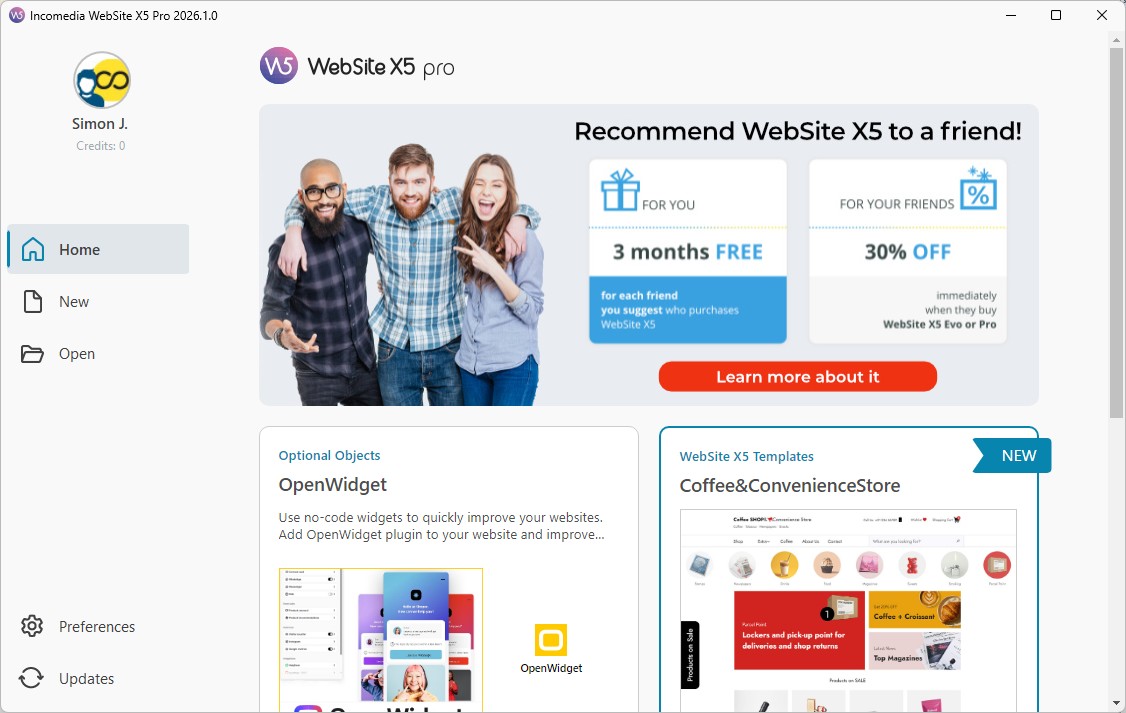
Once the project is open, the following windows always maintain the same structure: this allows you to easily find your way throughout the entire workflow.
You will always find:
- a top toolbar with the main commands;
- a sidebar with the project Steps;
- a central area that changes according to the activity you are performing.
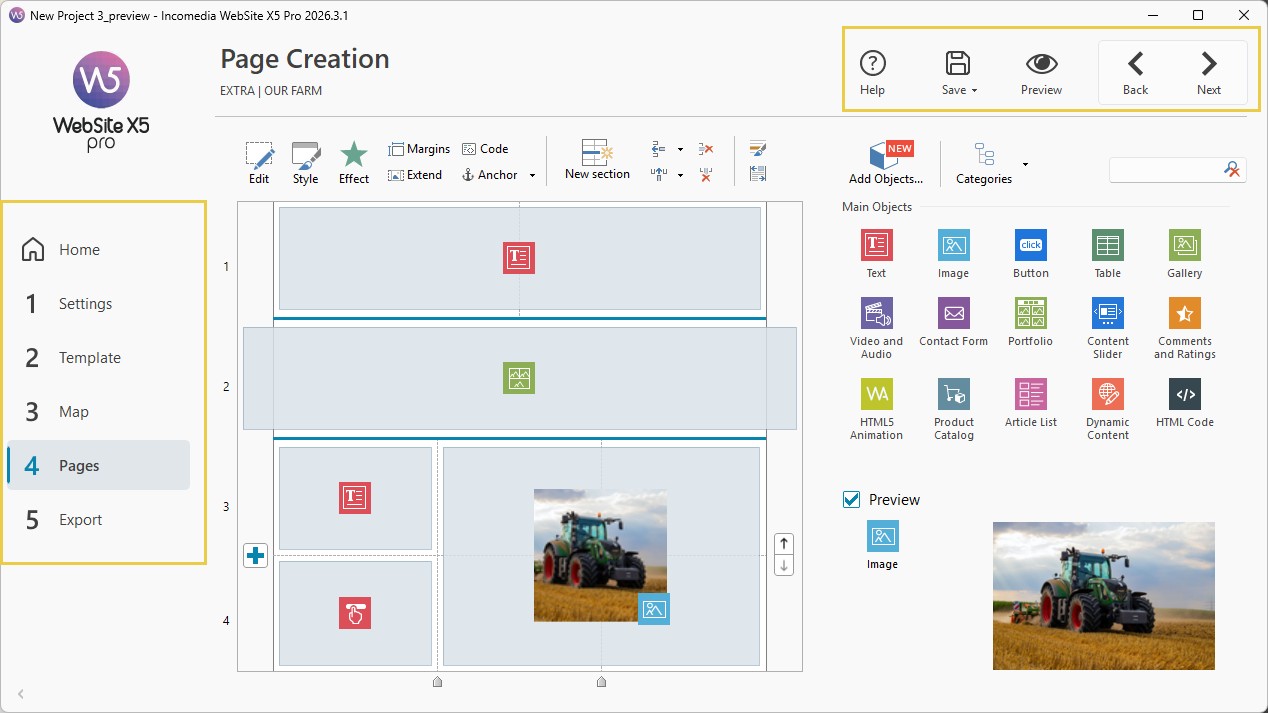
You can easily resize the WebSite X5 window by dragging its edges with the mouse to make it larger or smaller. If the window size allows it, on the right side you will see the Tips Bar with guides relevant to the features you are using and the Chat to interact with an AI Agent trained to answer your questions about using WebSite X5. Otherwise, you can access the Guides through the dedicated button.
The goal of the interface is to allow you to work in a simple and visual way without having to manage code or complex technical configurations.
#tip - To learn more about the interface and the available commands, see Interfaccia. Come orientarsi nell’ambiente di lavoro di WebSite X5?.
Create a new project
Everything starts with creating a new project.
In the Welcome screen, click New Project and choose how you want to start your website.
You have three main options:
- start from one of the available predefined Templates;
- use the help of MagicSite, the Artificial Intelligence assistant integrated into WebSite X5;
- start from an Empty Template.
Predefined Template
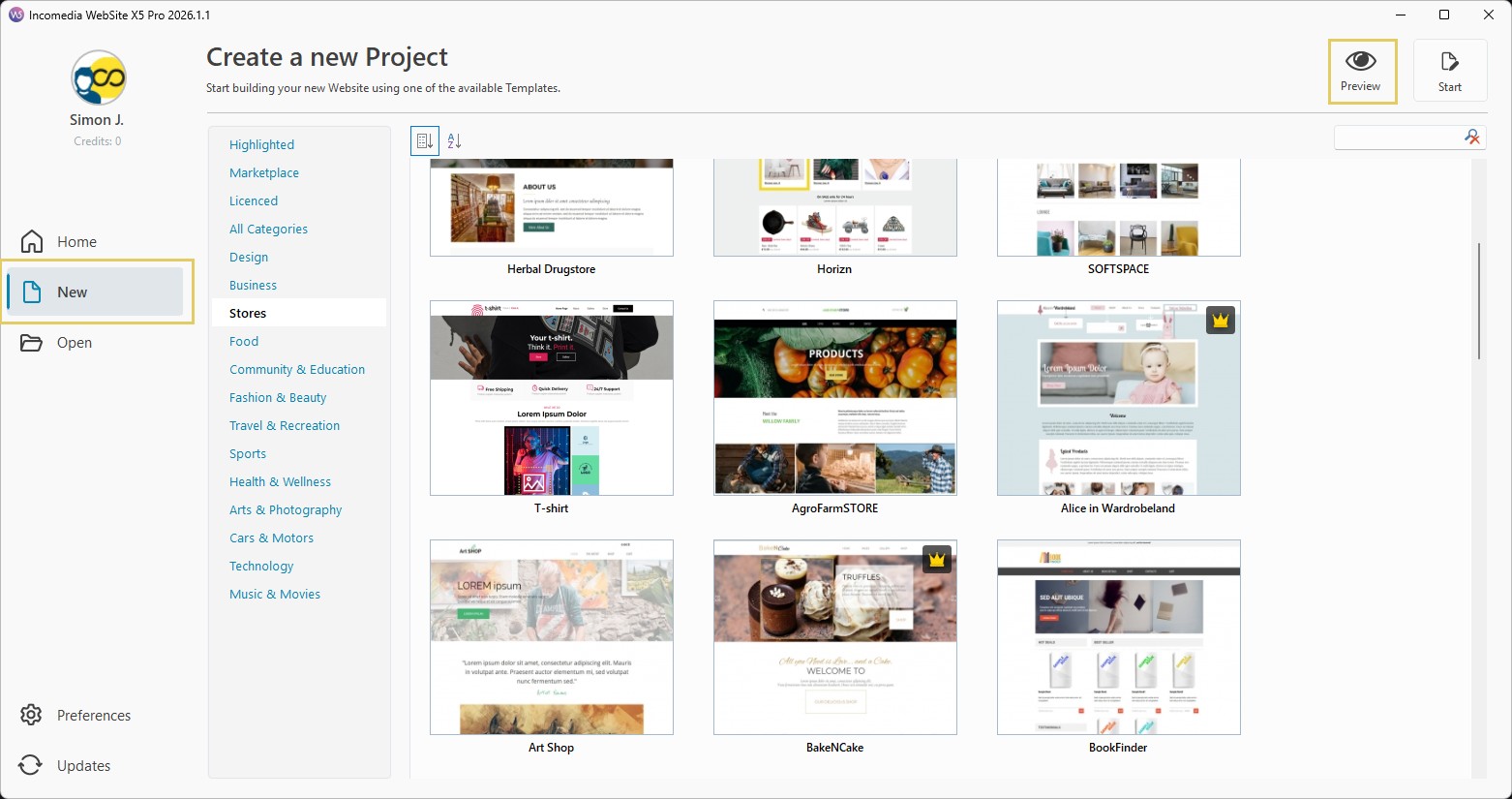
Templates are projects that already include graphics, layout, and sample pages. They are ideal if you want to publish your website online quickly, starting from a ready-made structure.
You can:
- browse the gallery;
- filter templates by category;
- preview them;
- check their responsive behavior.
Once you choose a template, the project is created automatically.
#tip - Learn more in the guide Website. How do you create a professional website in 5 steps?
MagicSite
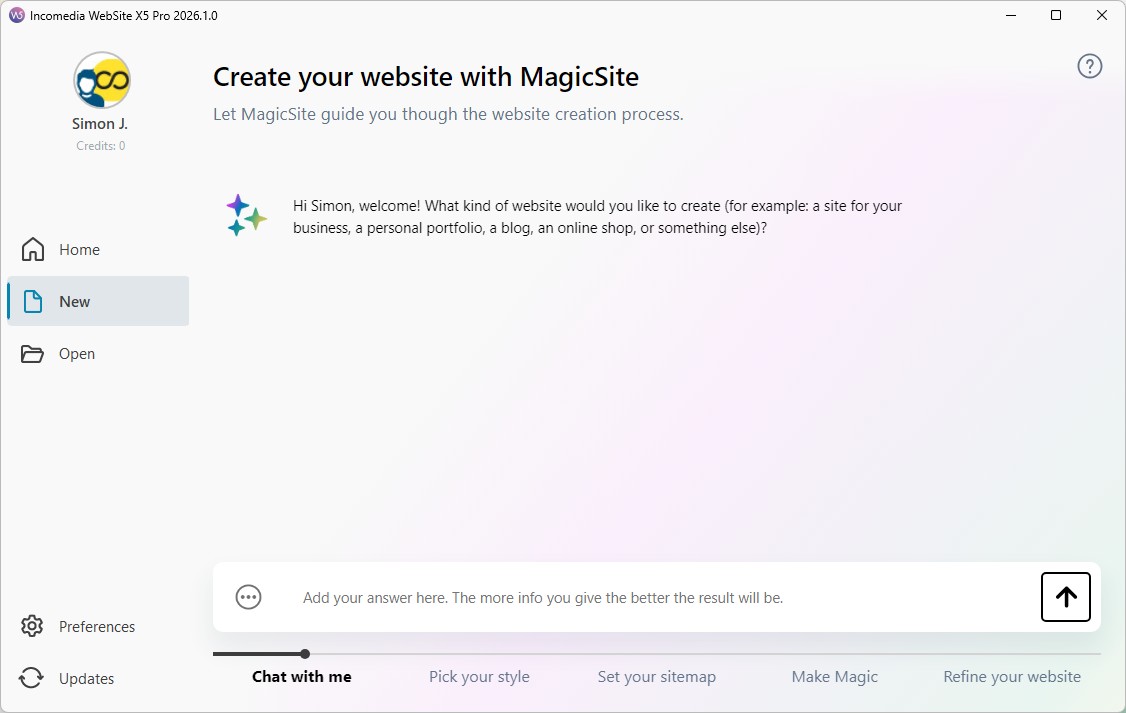
MagicSite is the AI assistant integrated into WebSite X5.
Through a guided chat, it gathers information about the project, the type of website you want to create, the desired style, and the main contents.
Based on your instructions, it automatically generates:
- website structure;
- pages;
- graphic style;
- images;
- text contents.
This allows you to quickly obtain a first complete version of the project, which you can then open in the WebSite X5 editor and customize.
#tip - For more information, see What is MagicSite and how do you use it to generate a website?
Empty Template
If you prefer maximum creative freedom, you can start from an Empty Template and build the entire website from scratch.
This solution is ideal if:
- you want to use a custom design;
- you already have a precise structure in mind;
- you want full control over every aspect of the layout.
#tip - Want to learn more about applying your own template? See How do you create a new Template starting from an Empty Template?
Organize website pages and menus
Once you have started a project, you can define a series of general settings (collected in Step 1) and work on all graphic aspects and styles (Step 2) to completely customize the visual appearance of your pages. To move directly to defining the website structure, go to Step 3 - Map.
The Map is displayed as a tree structure and represents the architecture of the website. It allows you to organize:
- pages;
- menus;
- levels and sub-levels;
- navigation links.
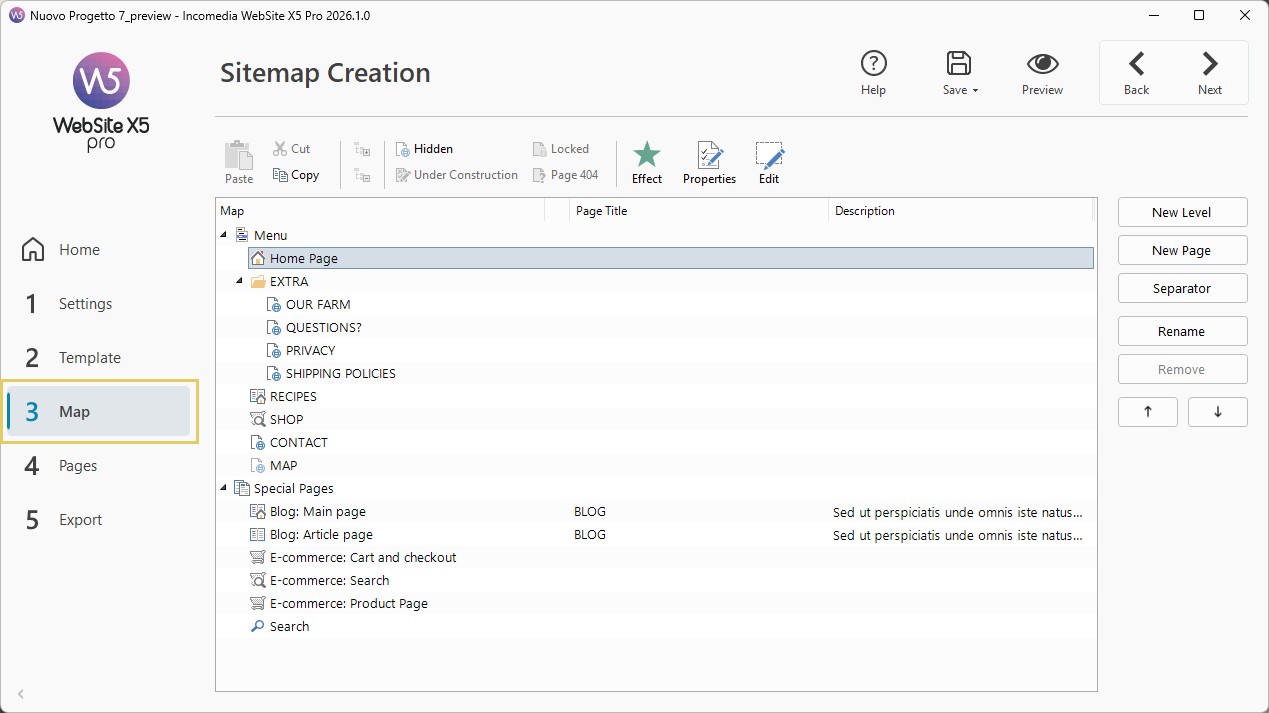
All items added to the Map automatically become menu items on the website.
For this reason, it is important to name them appropriately and organize them in a clear and intuitive way.
You can modify the Map structure at any time simply by dragging pages or renaming existing items. The navigation menus are updated automatically as a result.
#tip - Adding, organizing into levels, deleting, removing, or moving pages is very simple. In the guide Sitemap. How can you organize pages and menus effectively?
Add contents to pages
Once the website structure has been defined, you can start creating the page contents.
Select the page in the Map that you want to work on and click Next (alternatively, double-click the page itself). In Step 4 - Page Creation, WebSite X5 uses a visual Layout Grid where you can add all the necessary contents through Drag & Drop.
Contents are managed through Objects, that is, ready-made blocks dedicated to different types of content: texts, images, galleries, forms, buttons, and more. The pre-installed Objects already cover all the main needs. In addition, there are Optional Objects available on the Marketplace that you can choose to download (if free) or purchase (if paid).
To create a page, you simply need to:
- select an Object (for example, a Text Object);
- drag it onto the Layout Grid and drop it into the most appropriate cell;
- open the settings of the inserted Object;
- customize its contents and style.
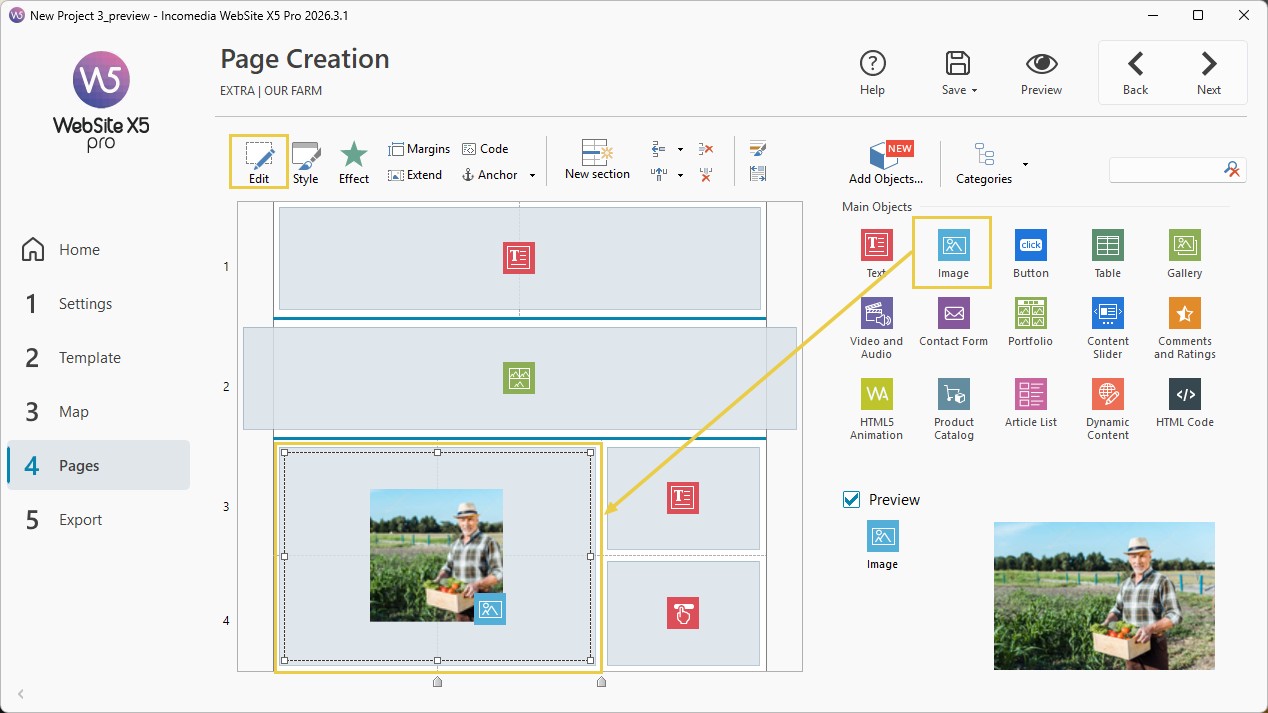
You can also:
- add rows and columns to the Layout Grid;
- divide the Grid into Sections, so you can use different row and column structures in different parts of the Page;
- use the selection handles of inserted Objects to modify their size and position;
- create responsive layouts;
- customize the appearance and behavior of elements.
In this way, you can build even very complex pages without manually editing code.
#tip - Working with the Layout Grid using Drag & Drop Objects is easy and fast. Learn more in Page Layout Grid. How do you organize the structure of a page?, Page Sections. How do you create layouts with different structures? and Objects. How do you add and arrange content on a page?
Use AI to generate texts with MagicTex
If you use WebSite X5 Pro or Agency, you can also take advantage of MagicText, the integrated AI assistant for generating text contents.
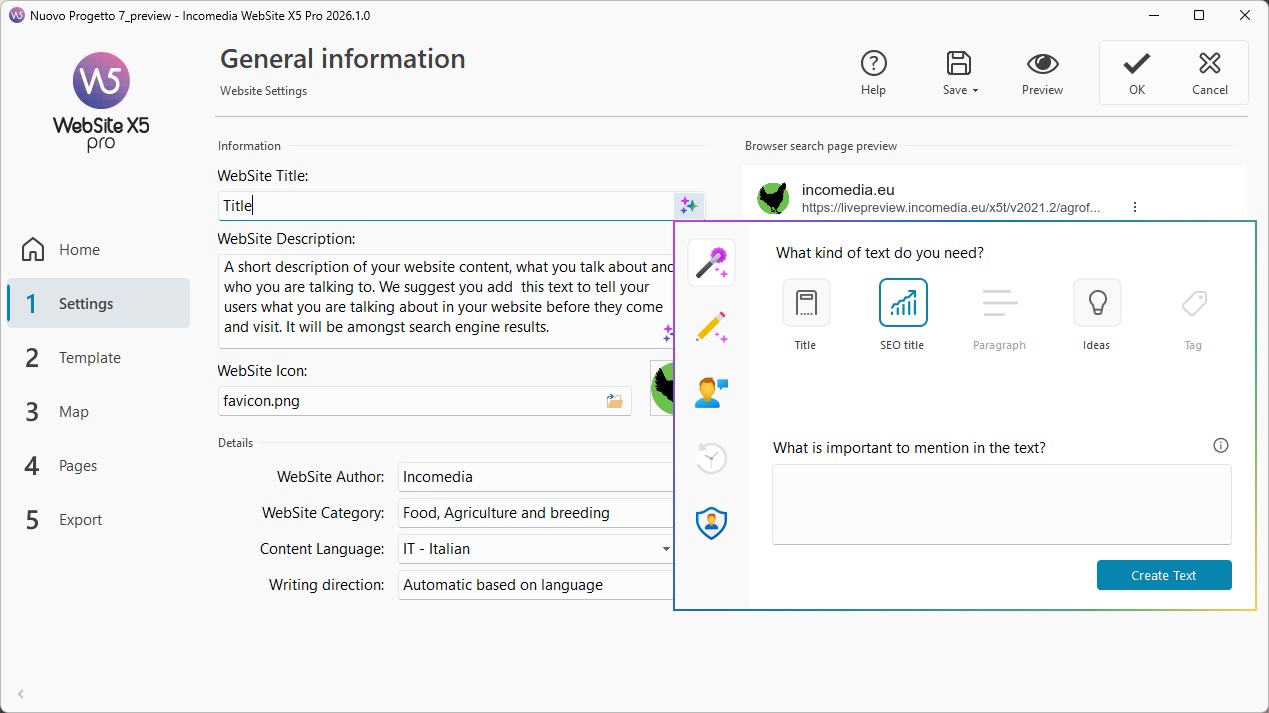
MagicText can help you:
- generate texts;
- create titles;
- write SEO descriptions;
- find new ideas;
- produce paragraphs and contents for your pages.
You can call up MagicText simply by clicking the  button available in many fields and in the text editor: once you choose the type of text you want and specify what is important for you to be mentioned, the assistant will generate the text and you can copy it or insert it directly with a click.
In this way, you can significantly speed up content creation, especially during the initial stages of the project.
#tip - What makes interacting with MagicText so powerful is its understanding of natural language. Learn more with What is MagicText and how do you use it to generate text contents?
Preview your website
While working on your project, you can check the result at any time using the Local Preview.
The preview allows you to:
- check the design and navigation;
- verify responsive behavior;
- test menus and links;
- view the website before publishing it.
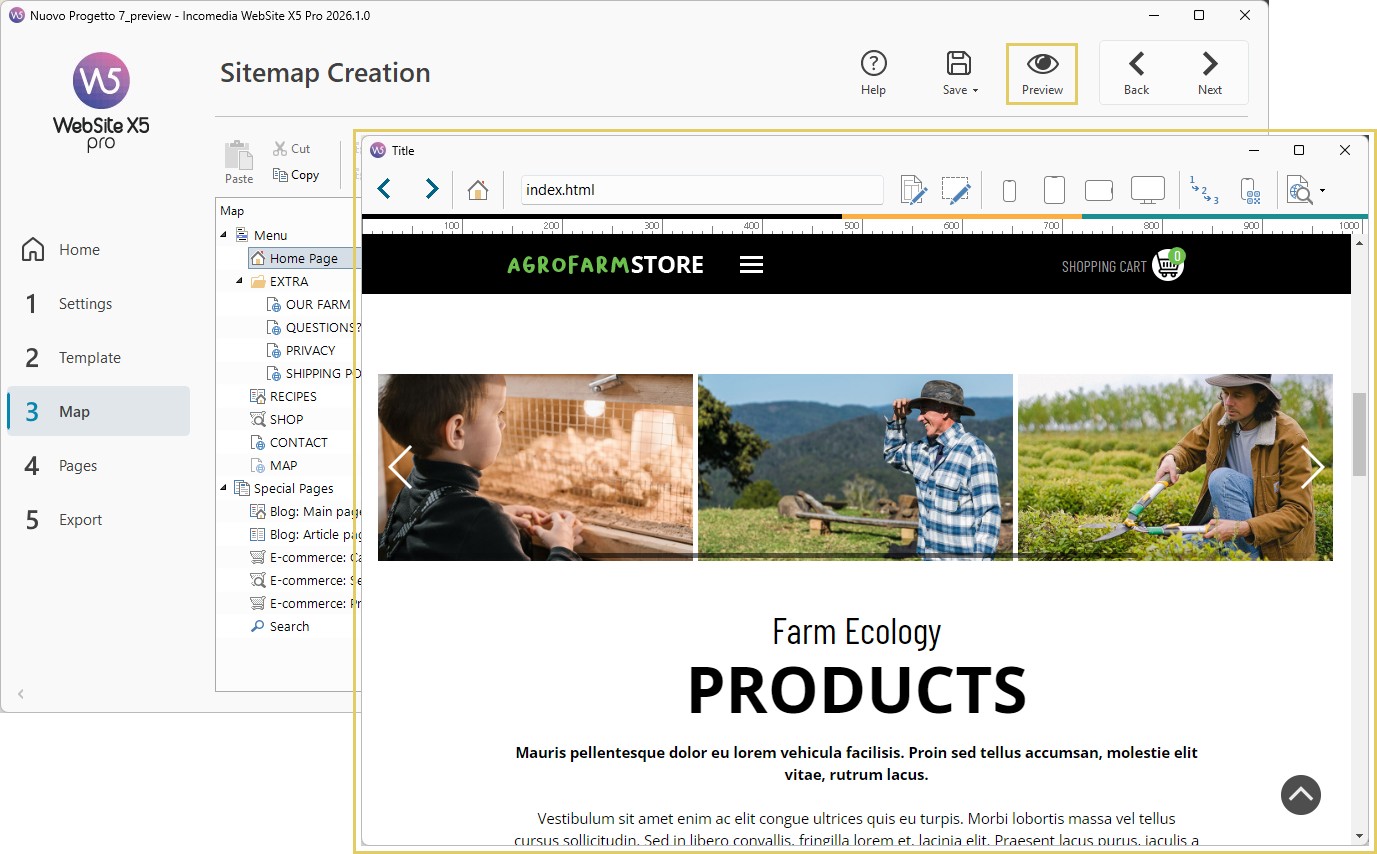
The Local Preview uses an internal browser and opens in a separate window that does not interfere with any instance of your default browser that may already be open.
You can also keep the preview of the website under development automatically updated with the changes you make in the workspace: this allows you to work faster while creating your pages.
#tip - For more information, see Project Preview in WebSite X5.
Publish your website online
When your project is ready, you can publish it online through Step 5 - Export.
WebSite X5 allows you to easily export your website:
- to the included WebSite X5 Hosting service;
- or to any other hosting provider.
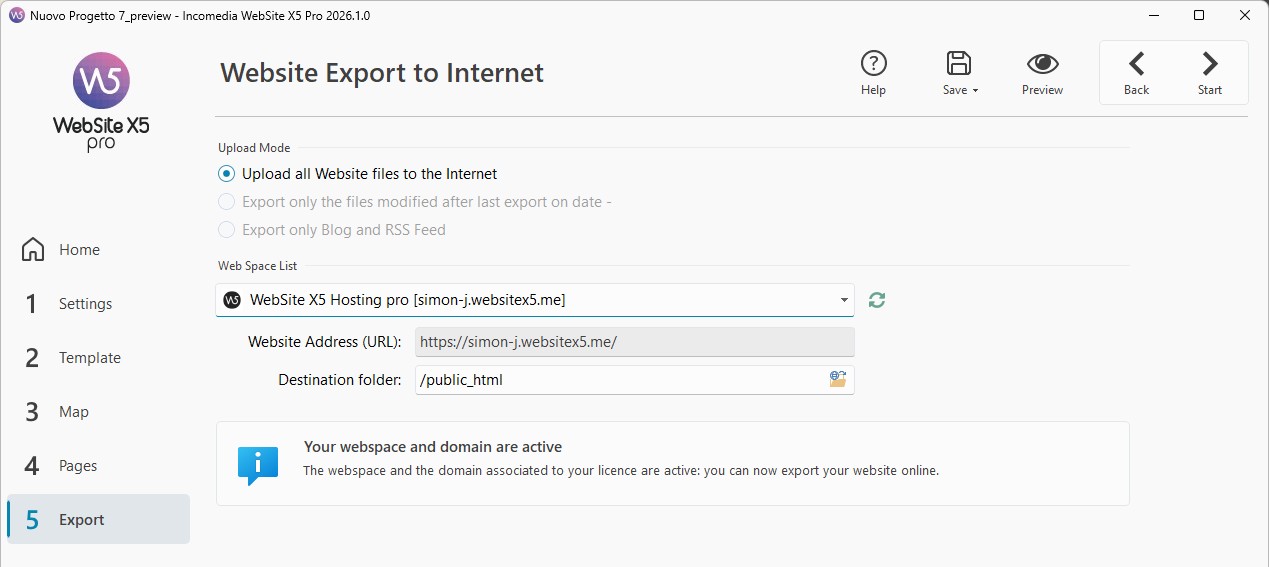
If you use WebSite X5 Hosting, most of the required configurations are already set up automatically.
Once the export is complete, the website will be immediately accessible on the Web.
#tip - We explain how to do it in the guide Web Space - How do you export a website created using the Hosting service included with WebSite X5?
Practical tips
To work more effectively with WebSite X5, it is useful to approach your project gradually.
At the beginning, it is best to focus mainly on:
- the website structure;
- page organization;
- content clarity;
- navigation simplicity.
Graphics and more advanced customizations can be refined later.
To achieve better results:
- become familiar with the Steps before customizing the project;
- use the Preview frequently;
- take advantage of templates to speed up your work;
- consult the guides suggested in the sidebar;
- do not try to perfect everything before the first publication.
Thanks to its visual approach and integrated tools, WebSite X5 allows you to manage the entire website creation process in a simple, flexible, and accessible way, even without technical expertise.
In summary
WebSite X5 is a visual software solution that allows you to create professional websites without coding.
Through templates, Drag & Drop tools, and integrated AI features, you can easily manage graphics, pages, contents, SEO, and online publishing.
Whether you want to create a personal website, a blog, a portfolio, or a complete e-commerce store, WebSite X5 guides you step by step all the way to publishing your project online.