Compatibility:
WebSite X5 Evo, Pro and Agency
Beta Service
When starting work on a new website, one question often comes up: “Where do I begin?”
Especially if you do not have much experience, it is easy to feel overwhelmed when faced with new tools or the many decisions that need to be made.
With WebSite X5, however, creating a website has never been so easy! Not only because the program works as a guided procedure that simplifies many of the initial choices, but also because it now includes MagicSite, an Artificial Intelligence-based assistant that helps you create your website starting from your specific needs.
Creating your new website with MagicSite is the best way to save time and obtain a complete first version of your site: structure, graphic style, pages, and content are automatically generated to provide you with a concrete foundation that you can later customize using all the tools available in WebSite X5.
The main steps are:
- Enter the project information
- Choose the graphic style
- Define the website structure
- Generate the website with AI
- Customize and publish the website
#tip - The website generated with MagicSite is only the starting point: it is an open project that you can open in WebSite X5 and freely customize in every detail, including structure, texts, images, and style.
How to create a website with MagicSite step by step
1. Enter the project information
Providing MagicSite with all the information needed to correctly set up your website project is very simple: just start a chat and begin talking naturally, exactly as you would with a colleague or a friend.
You can describe your business, the type of website you want to create, the audience you are targeting, the services you offer, and the style you would like to achieve.
- Start WebSite X5. In the welcome window, click New Project.
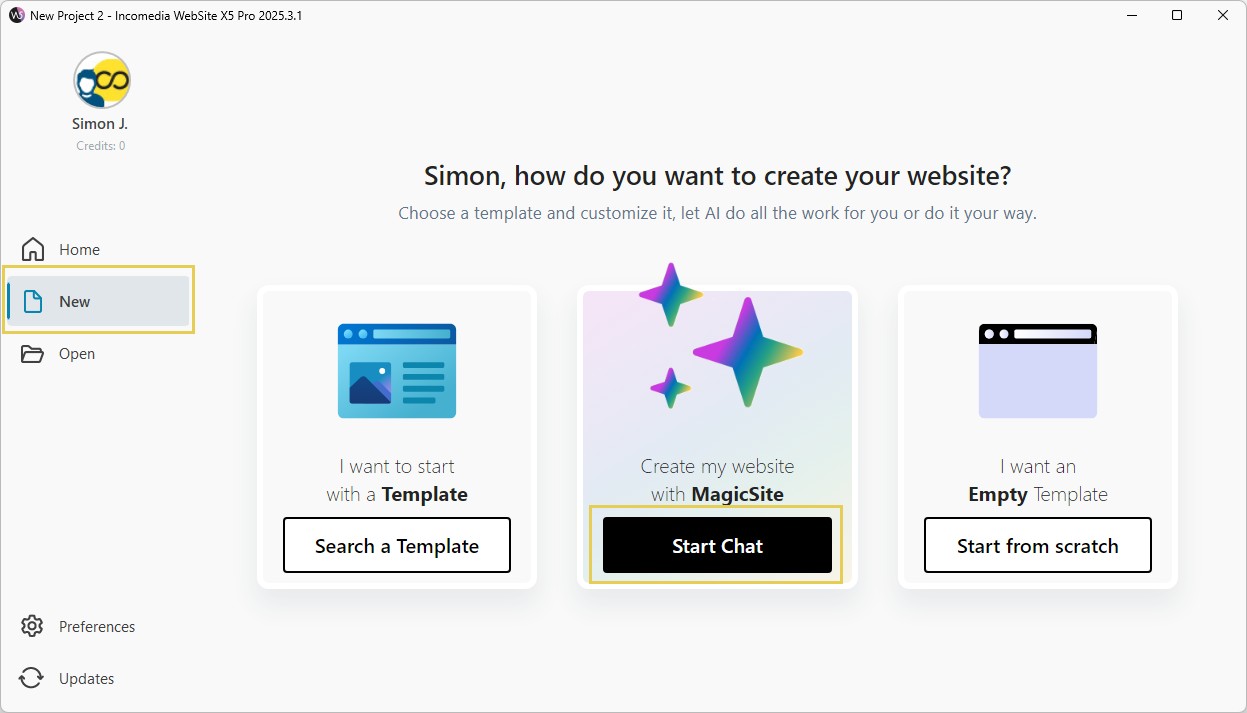
- Choose whether to start from a Predefined Template, a Blank Template, or with AI assistance using MagicSite: in this case, click Start Chat.
- Answer the questions proposed by MagicSite. There are no mandatory questions and no right or wrong answers: the more details you provide, the more the generated website will reflect your needs.
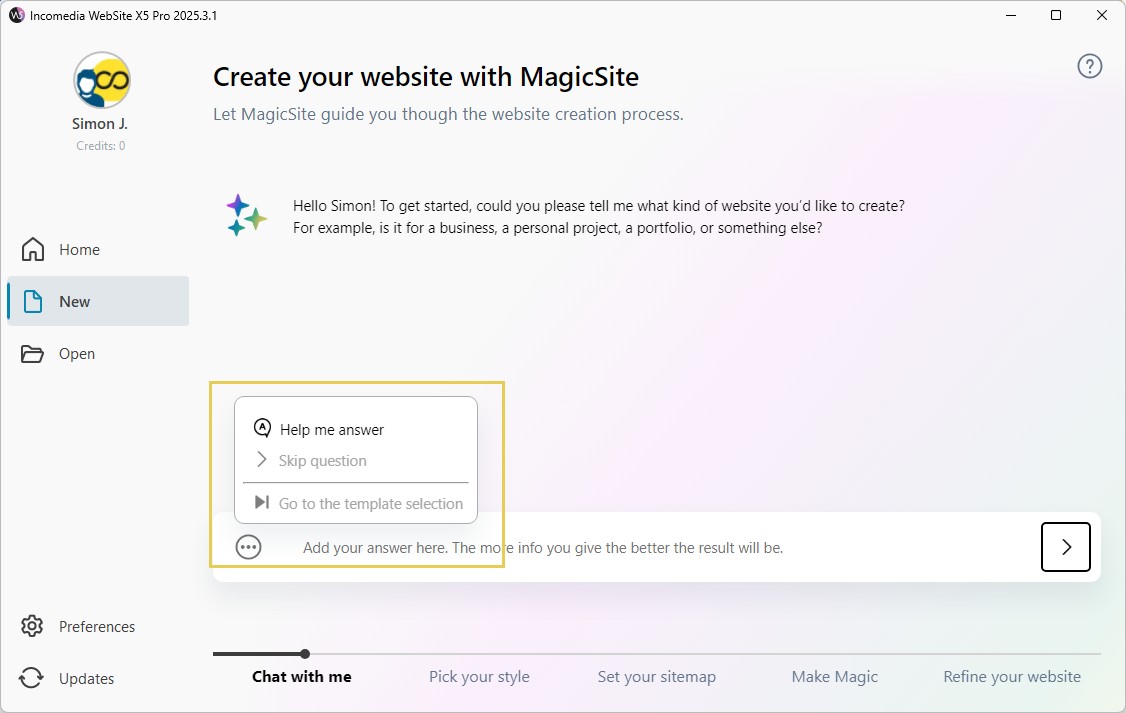
- By clicking the button available in the field where you type your answers, you can access some useful commands:
- Help me answer: ask MagicSite to rephrase the question, possibly adding more details about the type of answer it expects.
- Skip question: use this if you think the requested information is not relevant or useful.
- Go to template selection: available after providing the essential information, it allows you to stop the chat and move directly to defining the style.
#tip - Follow our suggestions in How to get the most out of the MagicSite chat
2. Choose the graphic style
Once the first interview phase is completed, MagicSite proposes between 2 and 4 graphic styles designed to match the project you described.
Each proposal includes a color palette, a tone of voice, fonts, and the text style: elements that define the graphic and communication identity of the website.
You can continue chatting with MagicSite to request different variations or suggest changes to the proposed styles. For example, you can ask it to keep the palette from one proposal and the fonts from another.
When you find the solution that best suits your needs, click Confirm style.
#tip - The selected style is not final: after generating the website, you can still modify colors, fonts, images, and layouts directly in WebSite X5.
3. Define the website structure
MagicSite proposes a complete structure of pages and content. Based on the information collected and what it considers most suitable for your project, it proposes a website map with the pages it considers useful and asks you to confirm which ones you actually want to generate. 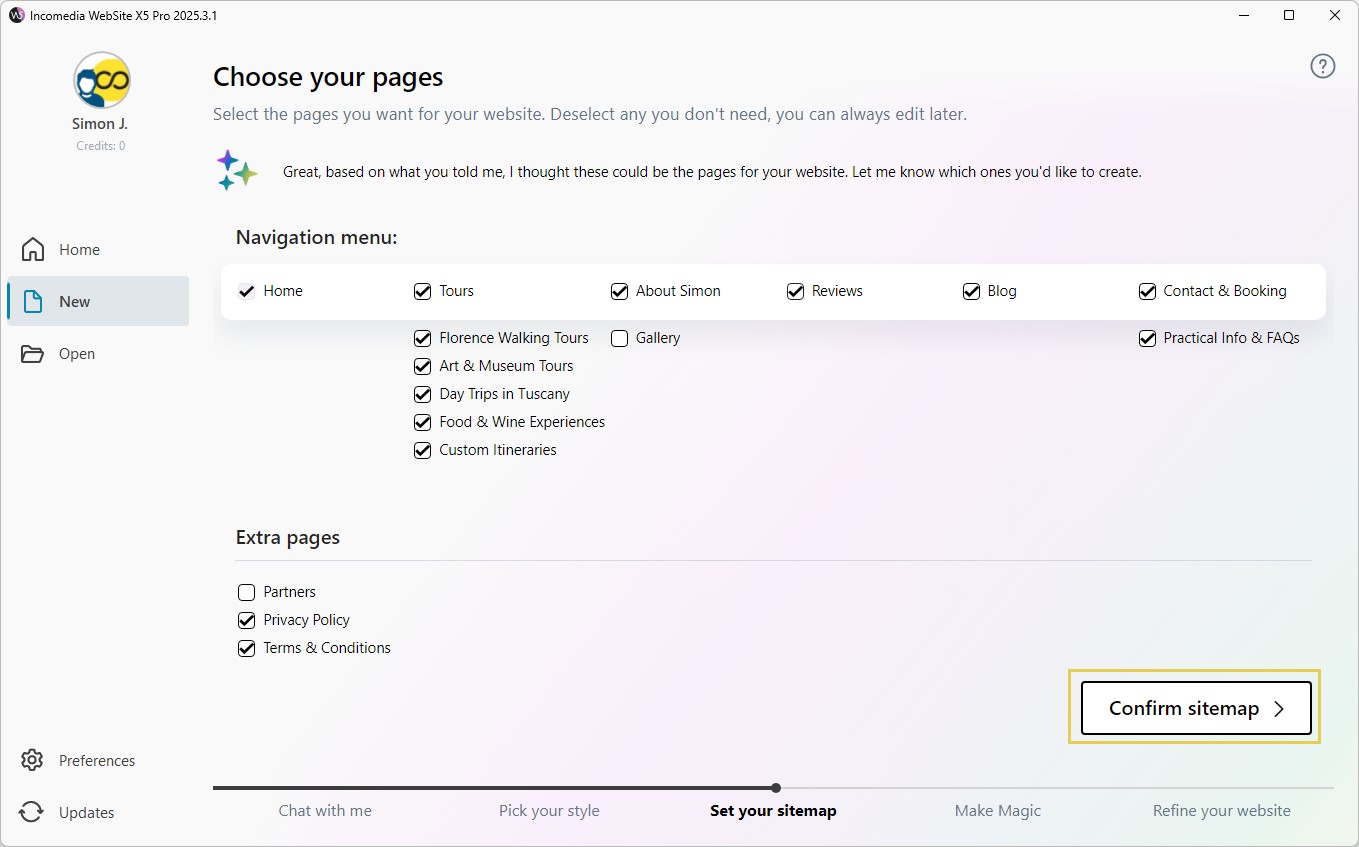
A main navigation menu is included with first-level items such as, for example, "Home", "About us", or "Contacts". Some of these items may also include a second level of detail. For example, under the "Services" item, a sub-level with one page for each type of service offered may be proposed.
In addition to these, Extra Pages are also proposed (for example, "Privacy Policy" or "Terms and Conditions"), which will generally be placed in the website footer.
You can decide which pages to keep and which to exclude simply by enabling or disabling the related checkboxes.
When you are satisfied with the website structure, click Confirm Map.
#tip - The Home Page is always required and therefore cannot be deselected.
4. Generate the website with AI
At this point, MagicSite has all the information needed to create the website project.
Now wait a few minutes while the pages of your new website are generated.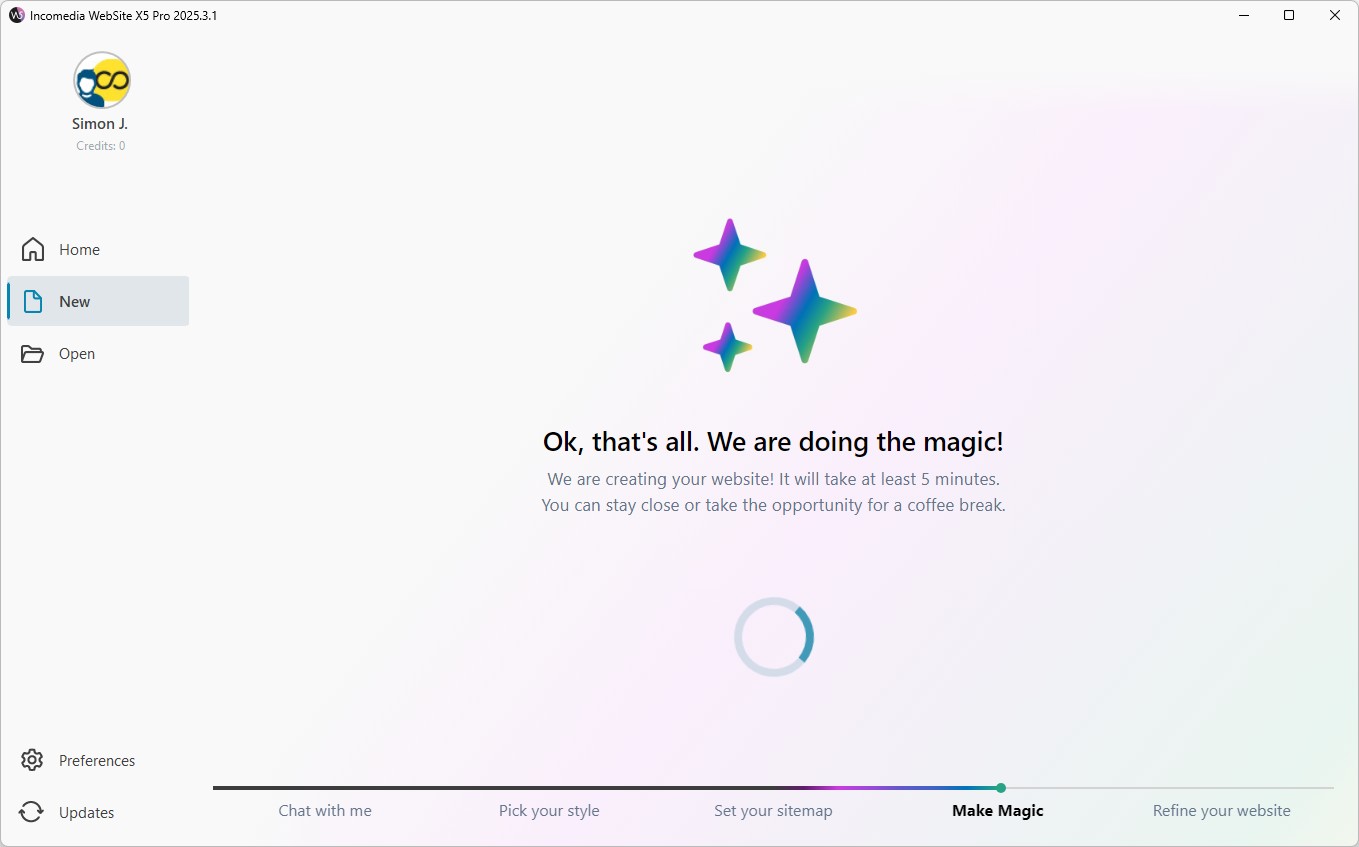
During generation, the following are automatically produced:
- the page structure;
- the text content;
- the images;
- the graphic elements;
- the general website layout.
The time required may vary depending on the complexity of the project, the Internet connection, and the number of requests being processed.
In any case, think of the time saved: in just a few minutes, you will obtain a complete project, already structured around your needs.
5. Customize and publish the website
Once generation is complete, MagicSite has turned your instructions into a real and fully editable project.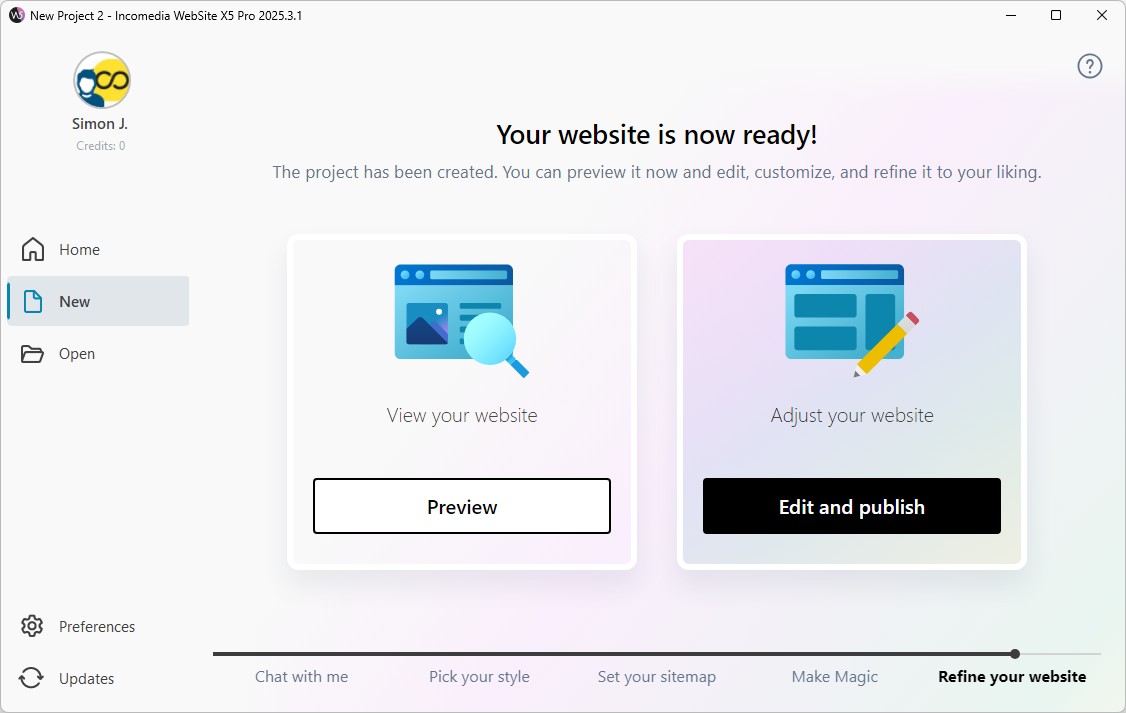
Can’t wait to see it? Click the Preview button to open it in the local browser.
As you can see, MagicSite has set up a template, structured a map, inserted and created a number of pages, chosen the images from the integrated libraries, and generated the necessary text content. In short, it has produced a complete and working website, taking care of much of the work.
Now it’s your turn. Click the Edit and publish button to open the project in WebSite X5: you can use all the available tools to make the final changes before proceeding with the online publication of your new website.
#tip - The project created with MagicSite is an excellent starting point that you can customize as you like. See How to customize a project created with MagicSite.
Practical tips
To achieve better results with MagicSite, it is important to consider the generated website as a working base to refine and customize.
The more precise the information provided during the initial chat, the more the generated project will match your needs.
To work more effectively:
- clearly describe the website’s business, goals, and audience;
- provide guidance on the desired graphic style and tone of communication;
- always review automatically generated texts and images;
- customize the project before publication;
- check the result on smartphones and tablets as well;
- use MagicSite as a starting point to speed up your work.
Thanks to the integration between AI and the visual tools of WebSite X5, you can significantly reduce the initial design time while still maintaining full control over the final result.
In summary
MagicSite allows you to quickly create a complete website simply starting from a guided conversation.
Through AI, the structure, graphics, pages, and content are generated automatically, providing a concrete foundation that can later be customized in WebSite X5.
In this way, you can speed up the initial design phase and focus more easily on customizing and growing your online project.