Compatibility:
WebSite X5 Evo and Pro
A blog can transform your website into much more than a simple online showcase: it can become a strategic tool to improve search engine visibility, strengthen your brand identity, build authority in your industry, and create an ongoing relationship with your audience.
Through the regular publication of content, you can increase organic traffic, highlight your expertise, promote products or services, and strengthen your online presence over time.
With WebSite X5, creating and managing a complete blog is accessible even without advanced technical skills.
The essential steps are:
- Activate the blog and create your first posts
- Customize page layout and structure
- Configure comments and user interaction
- Connect the blog to your website navigation
- Improve content visibility and accessibility
- Publish the blog online
- Moderate comments and keep the project active
#tip - The created blog will be published at the URL http://www.mysite.com/blog where http://www.mysite.com represents the address of the main website.
How to create a blog step by step
1. Activate the blog and create your first posts
Activating a blog is extremely simple: all you need to do is start writing your first article!
- Go to Step 1 - Website Settings and click on Blog.
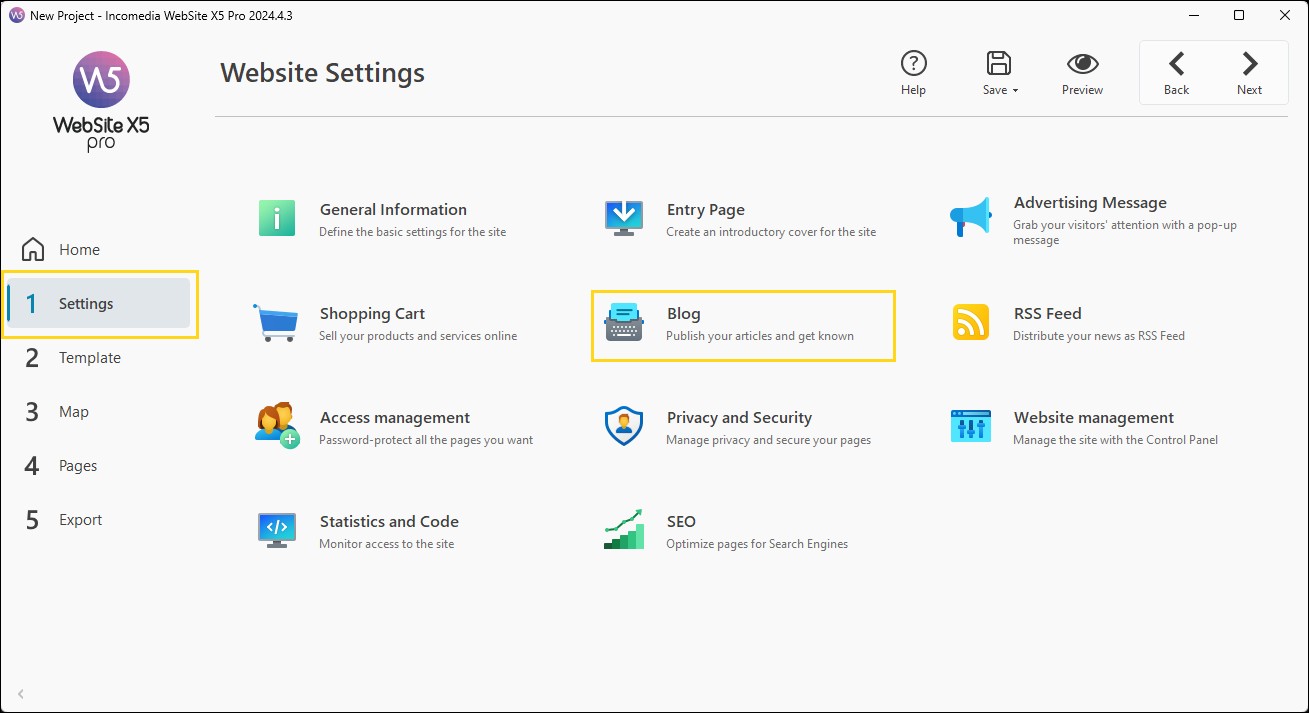
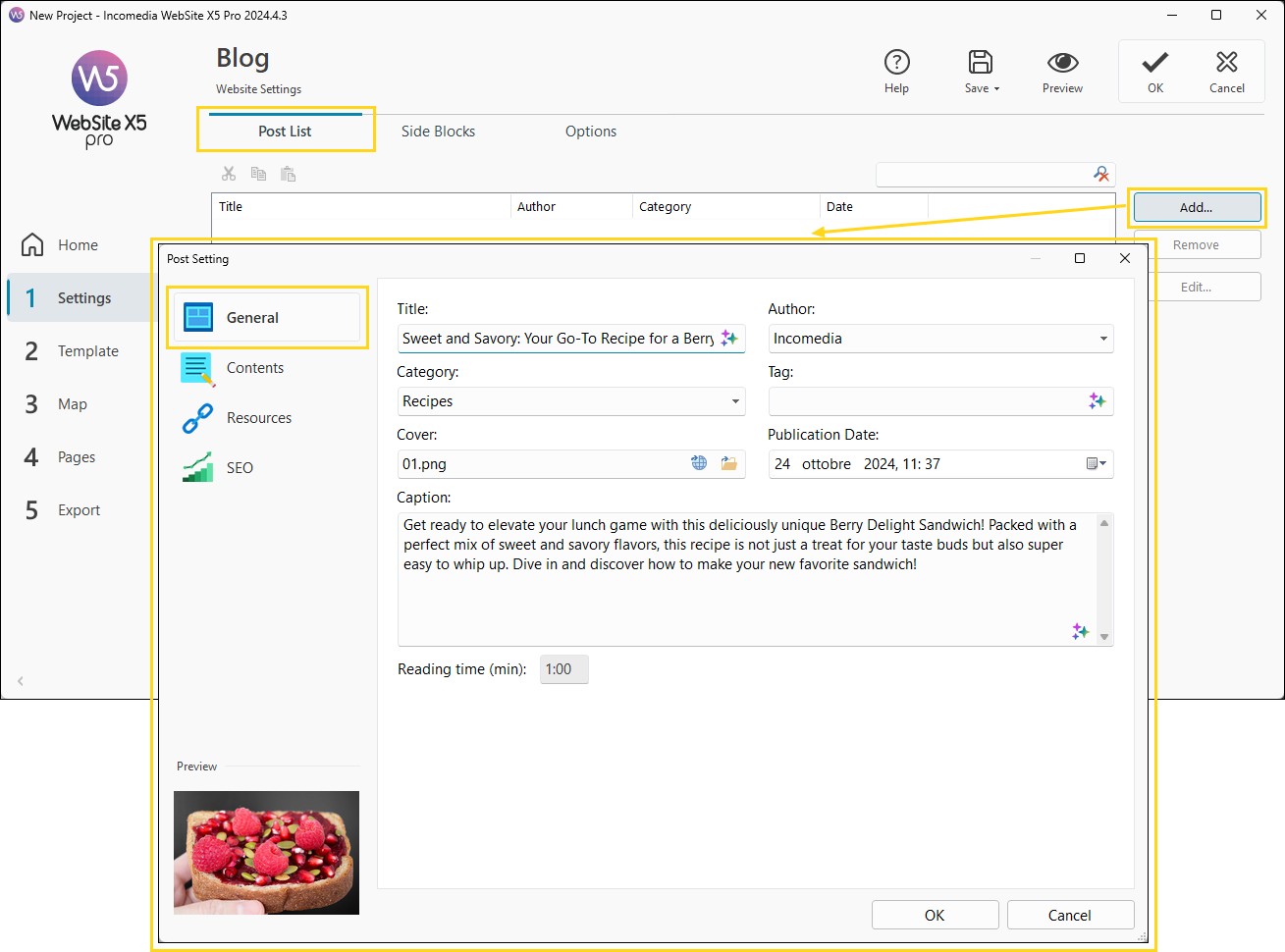
- Stay in the Posts section and click Add.
- In the Post Settings window, use the options in the Generalsection to enter the main post information:
- write a title and description;
- specify the category;
- indicate the author;
- assign a featured image;
- set the publication date for the blog.
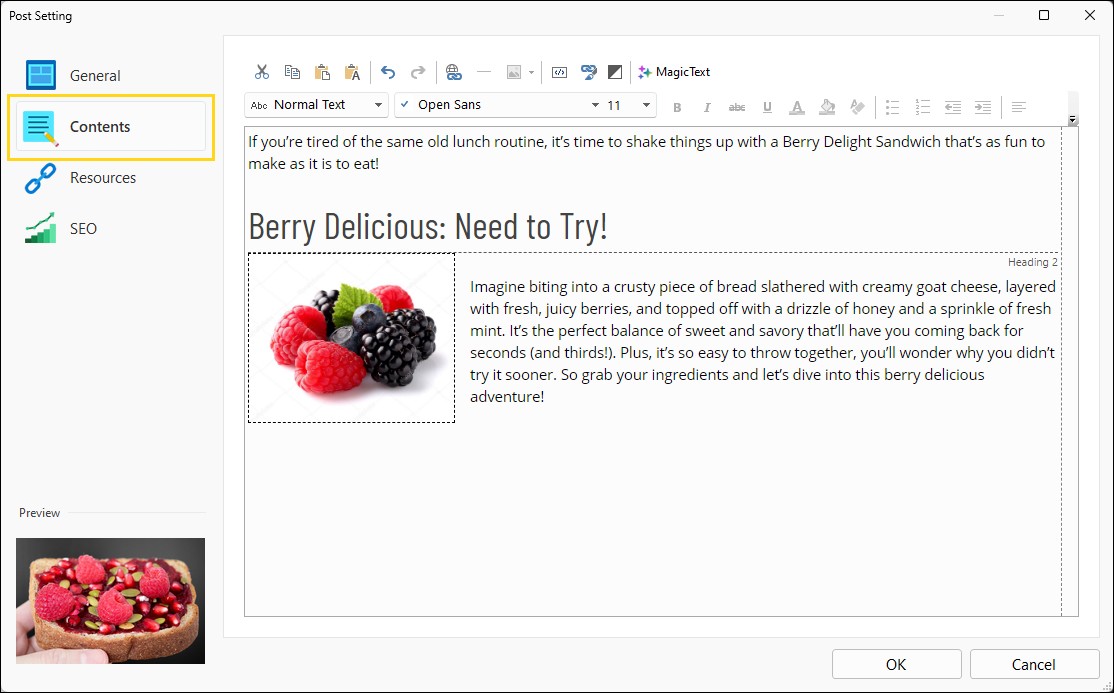
- Access the Content section to write and format the post.
- Insert images, links, and multimedia content.
- When you are satisfied, click OK.
- The newly written post appears in the Posts List: from here you can select it again to reopen and update it whenever necessary.
#tip - This way, you progressively build your editorial archive. You can find everything you need to know about creating and managing posts in the guides within the Posts section.
#tip - If you use WebSite X5 Pro, you can take advantage of MagicText, the integrated AI assistant, to find new ideas and receive support for writing titles, content, descriptions, and SEO elements. Learn more: What is MagicText and how do you use it to generate text content?
2. Customize page layout and structure
Now that you have created your first content, you can focus on defining the visual appearance of your blog.
The blog automatically uses the website template, but you still have full control over its organization and layout:
- the Sidebar Blocks bar. This is the sidebar displayed on blog pages: it contains tools readers can use to browse the post archive.
- the Main Page. This is the blog homepage and lists published posts in chronological order. Each post is presented through an automatically generated card containing essential information such as title, featured image, and link to the full article.
- the Post Page. These are the dedicated pages for each published article.
Sidebar Blocks bar
To create and customize the Sidebar Blocks bar:
- Go to Step 1 - Website Settings and click on Blog.
- Open the Sidebar Blocks section.
- Use the Add and Remove commands to create the list of blocks you want to make available, such as category lists or recent posts.
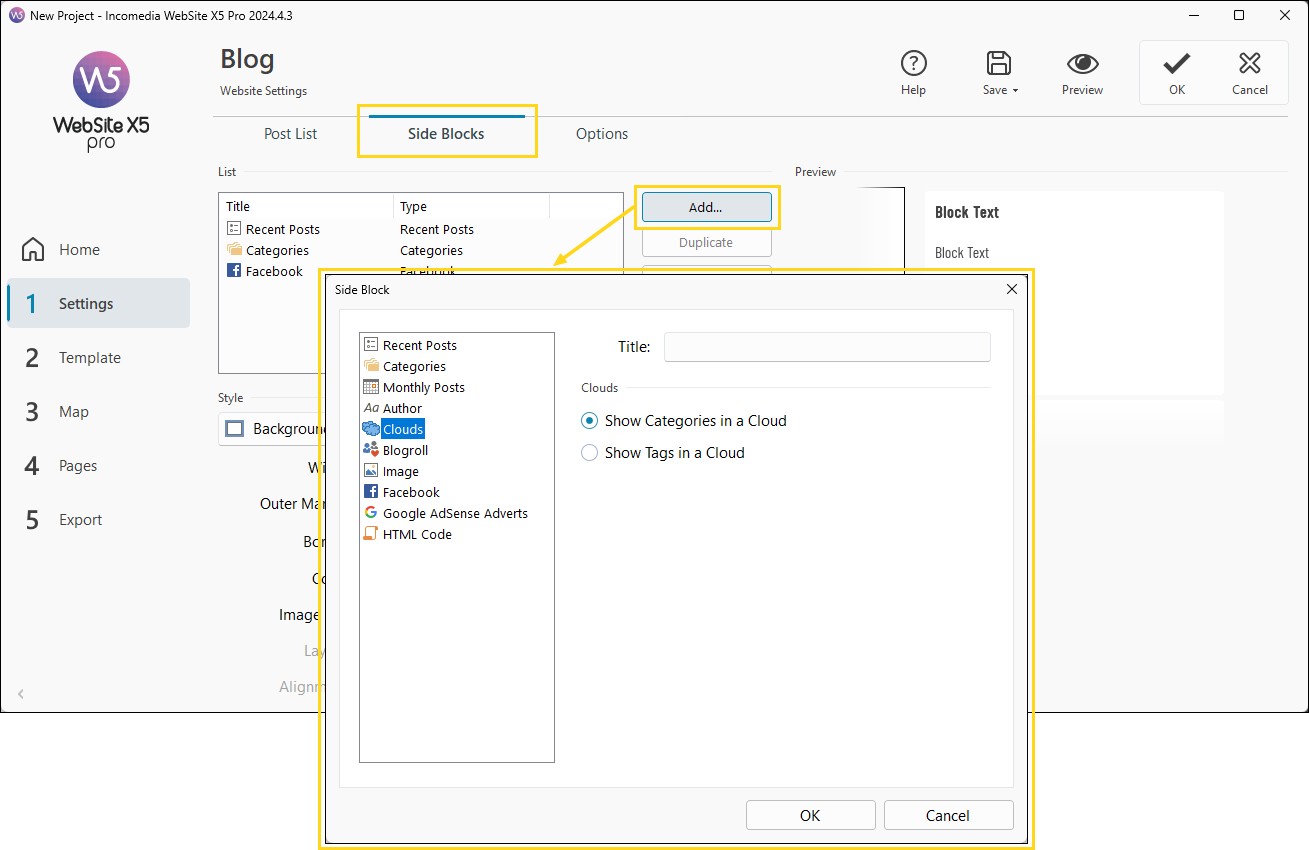
- Use the available Style options to define the visual appearance of the elements within the Sidebar Blocks bar.
#tip - For more information, see How do you add boxes with recent posts, categories, and tags to Blog pages?
Main Page
The Main Page is equivalent to the Blog homepage. You can customize several aspects:
- Go to Step 3 - Sitemap.
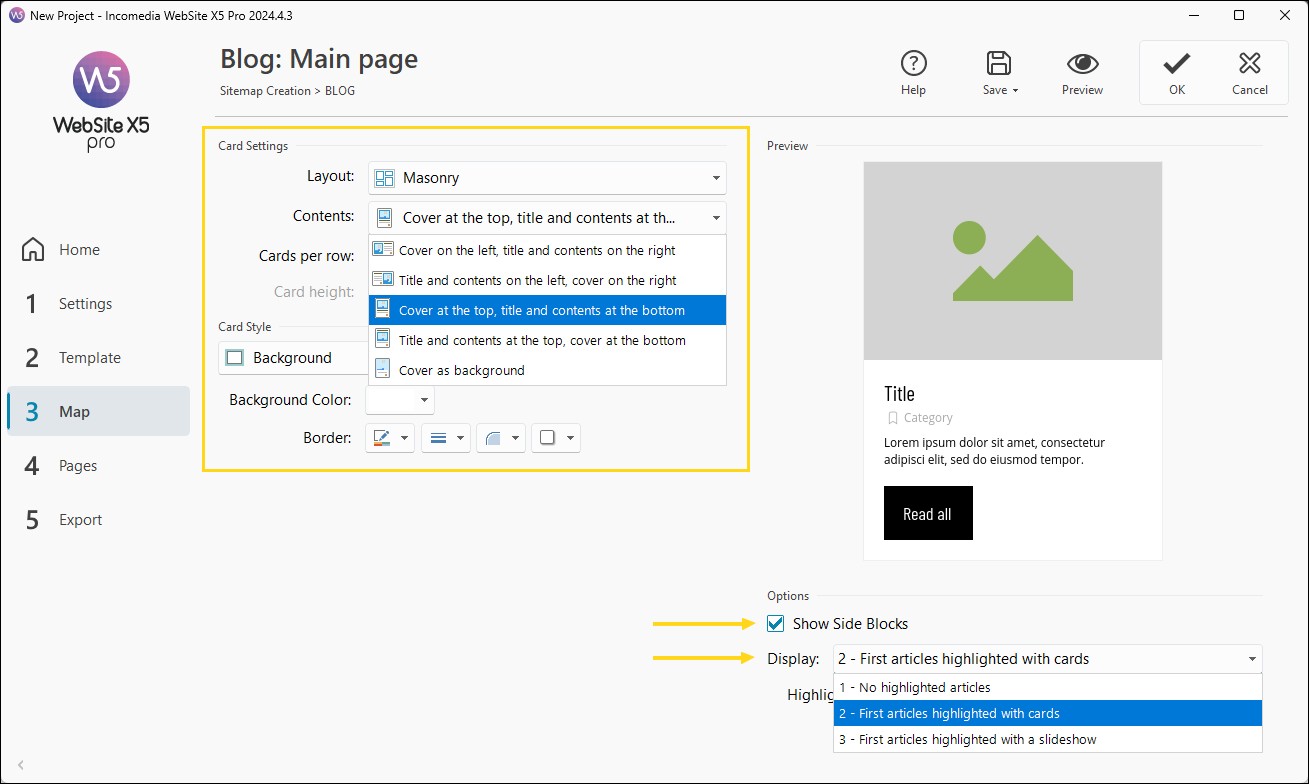
- Among the Special Pages, select the page "Blog: Main Page" and click Edit (or double-click the page itself).
- In Card Settings, decide the Layout of the cards within the page.
- Choose the arrangement of the Content within each individual card.
- Use the available options to align cards and define all graphic elements.
- Enable the Show Sidebar Blocks option if you want the sidebar to also appear on this page.
- To give more prominence to the latest published posts, use the Featured Posts option.
#tip - You can learn more by reading the guide How do you define the layout of the Blog Main Page?
Post Page
All pages dedicated to blog posts share the same structure and design:
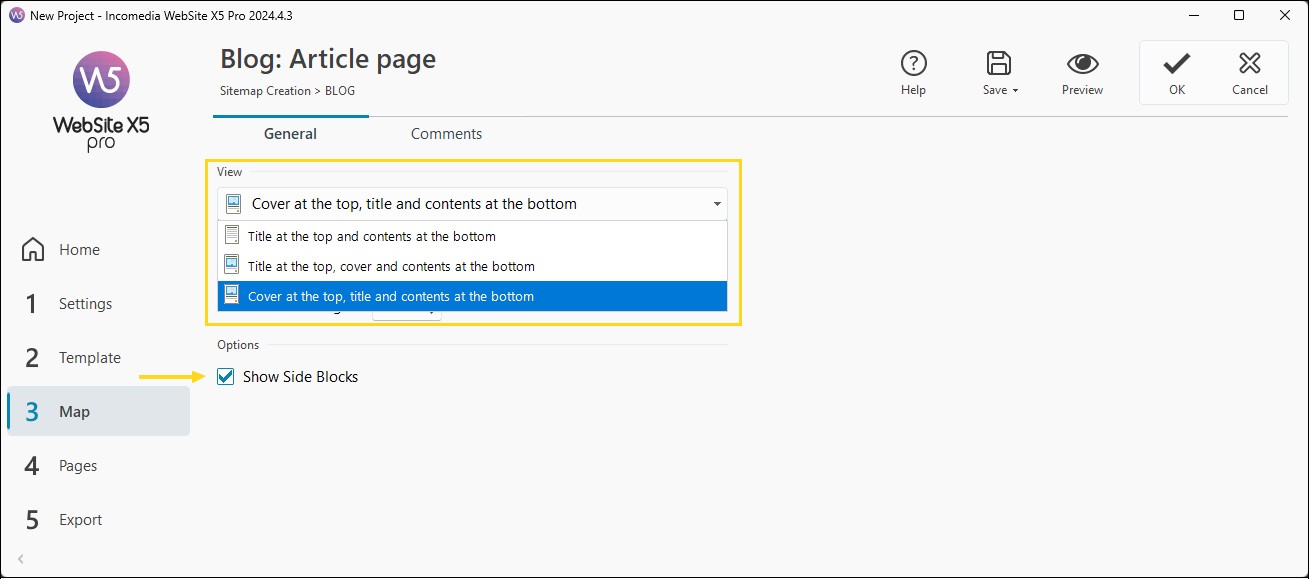
- In the Sitemap, select the Special Page "Blog: Post Page" and click the Edit button.
- In the General section, use the available Display options to choose how title, featured image, and content should be arranged.
- If you want Sidebar Blocks to appear on all article pages, enable the Show Sidebar Blocks option.
#tip - For more information, see: How do you define the layout of Blog Post Pages?
3. Configure comments and interactions
You are free to decide whether or not to allow your readers to leave comments below published posts:
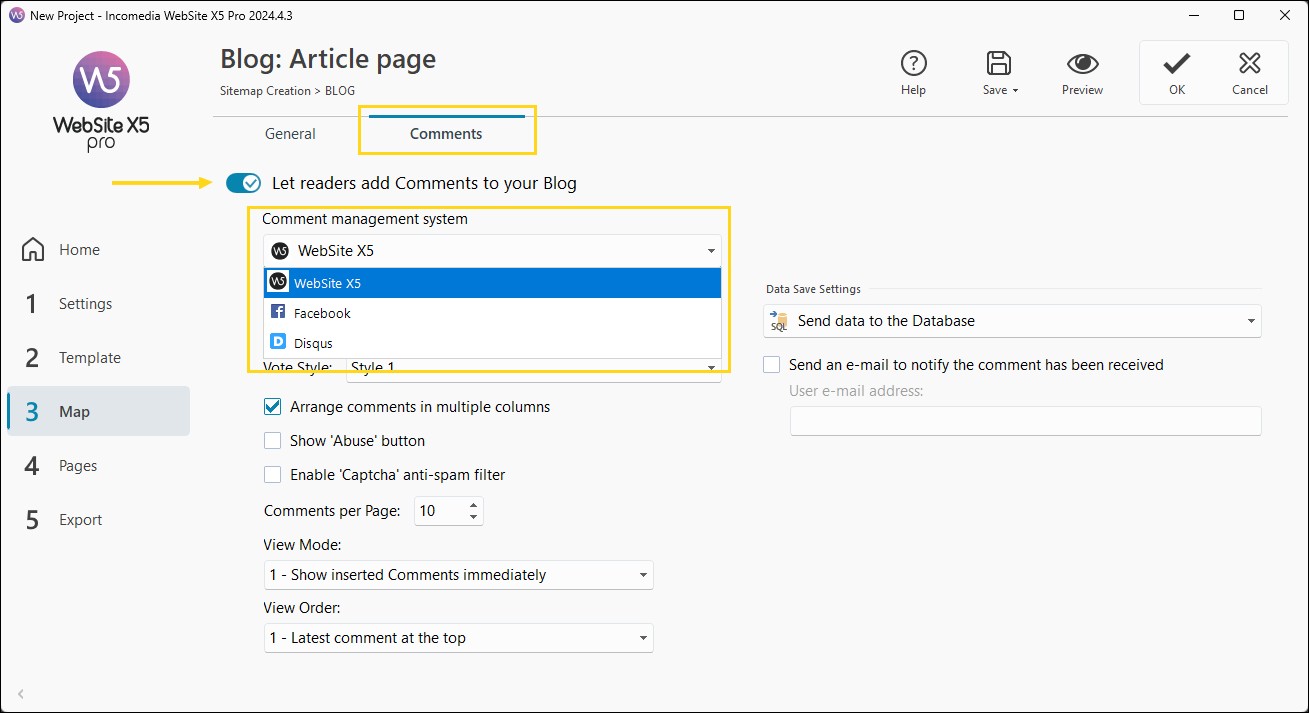
- In the Sitemap, select the Special Page "Blog: Post Page" and click the Edit button.
- Go to the Comments section.
- Enable the option Allow comments for Blog posts.
- Select the preferred Comment management systemfrom:
- WebSite X5’s internal system
- Disqus
- Depending on the chosen system, enter the required settings.
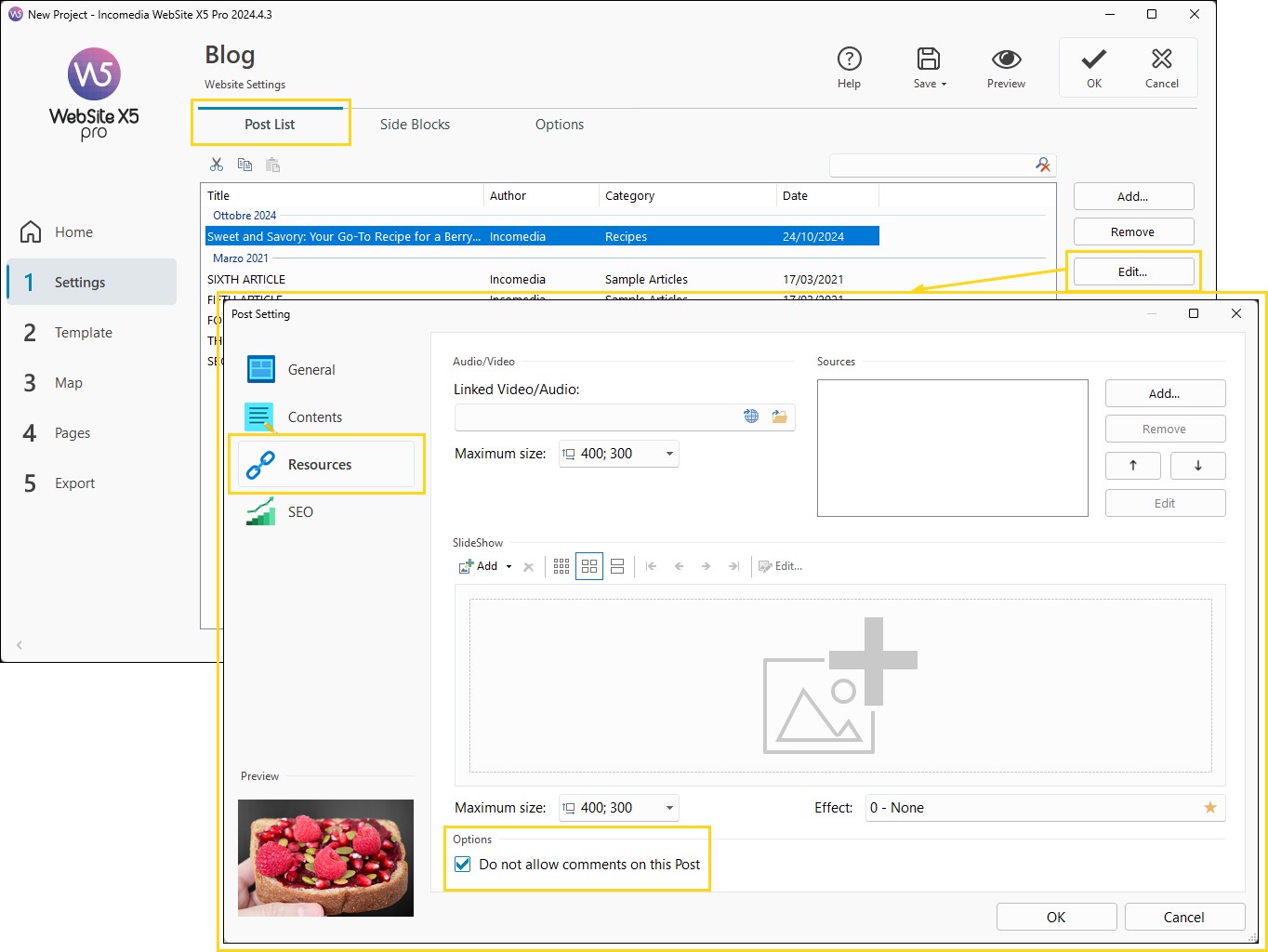
Even if comments are enabled for the blog, you can disable them for specific posts:
- Go to Step 1 - Website Settings > Blog > Contents.
- In the Post List, select the post you want to edit and click Edit.
- In the Post Settings window, open the Resources section and enable the option Do not enable comments for this post.
#tip - To learn more, see: How do you enable/disable comments for Blog posts?
4. Connect the Blog to your website navigation
Now that you have created your Blog and added your first articles, you need to ensure there is a navigation menu item that opens it:
- Go to Step 3 - Sitemap Creation.
- Select the page "Blog: Main Page" found among the Special Pages and drag it into the Menu folder. A Level is created that acts as an alias of the Special Page: therefore, it has the same name and link as the Special Page itself.
This way, the blog becomes an integral part of your website structure.
#tip - You can learn more by reading the guide How do you add a Blog link to the navigation menu?
5. Increase content visibility
Many websites with a Blog display a gallery of the latest published posts on their homepage. From a branding perspective, this helps strengthen your image. From an SEO perspective, it can help reinforce keyword positioning through your articles. You can create this type of gallery using the Post List Object:
- At Step 4 - Page Creation, open the Home Page (or the page where you want to insert the blog post gallery).
- Select the Post List Object from the list of default Objects and drag it into the most suitable cell of the layout grid.
- Select the inserted Post List Object and click the Edit button (or double-click the Object) to access its settings window.
- Use the available options to choose which posts to include and define the visual style of the cards that display them.
#tip - To discover everything you can do with the Post List Object, see: How do you work with the Post List Object?
6. Publish your blog online
Once your first posts are ready, all that remains is to publish them online:
- Go to Step 5 - Export and click on Export to the Internet.
- Select the Web Hosting Provider you want to use: if you choose WebSite X5 Hosting, once the service has been activated for the first time, you will be immediately ready to publish. If, on the other hand, you use another provider, click on the Parameters button and, through the Server Settings window, enter the required server connection parameters.
- If this is the first time you are publishing the project, select the option Export all files of the website.
- If you have already published the website and only need to upload your latest blog posts, select the option Export only the Blog and RSS Feed: this way the publication process will be faster.
- Click the Start button to begin publishing your website online.
#tip - For more information, see: Web Space - How do you export the website created using the hosting service included with WebSite X5?
7. Moderate and keep your blog active
If you have chosen to enable comments on your blog, you need to constantly monitor incoming comments and moderate any discussions that may arise.
The moderation tools available depend on the comment management system you have activated:
- if you use WebSite X5’s internal system, you can moderate discussions through the online Control Panel (see: How do you manage comments through the online Control Panel?);
- if you use Facebook or Disqus instead, you can manage comments through the dashboards provided by those platforms (see: How do you use the Facebook plug-in to manage comments? and How do you use Disqus to manage comments?).
Practical tips
Creating an effective blog does not simply mean publishing articles, but developing over time a coherent, useful editorial project capable of strengthening your online presence.
To achieve concrete results, it is important to work both on content quality and publishing consistency. Regularly updating your blog with new articles helps maintain audience interest and progressively improve search engine rankings.
At the same time, good category organization, clear structure, and easily accessible content make navigation simpler and enhance the value of your entire editorial archive.
To maximize blog effectiveness:
- publish content regularly;
- organize categories and topics clearly;
- optimize SEO, titles, and article structure;
- use high-quality images;
- promote posts through your website, newsletters, and social media;
- periodically update previously published content;
- encourage interaction and comments;
- monitor traffic, performance, and audience interests.
A well-designed blog therefore becomes much more than a simple section of your website: it can evolve into a strategic communication, branding, and growth tool, capable of building authority, trust, and visibility over the long term.
In summary
Creating a blog with WebSite X5 means equipping your website with a powerful tool for communication, SEO improvement, brand strengthening, and building an ongoing relationship with your audience.
Thanks to intuitive visual management, you can design, publish, and maintain a professional blog without working directly with code.
With a well-organized editorial strategy, your blog can become one of the main growth engines of your online project.