Compatibility:
WebSite X5 Pro
Once you have created your product catalog and defined the purchasing process, it is important to configure the payment methods that will be offered to customers during checkout.
With WebSite X5, you can enable multiple payment methods at the same time, customize their behavior, and decide in which countries they will be available.
In this guide, you will learn how to:
- Access payment method management
- Create or edit a payment method
- Limit its availability to specific countries
- Configure payment costs and options
- Customize the message included in the order confirmation email
#tip - If you would like to learn more about the available payment gateways and understand which one is best suited to your project, see the guide Payment methods. Which solutions can you integrate into your e-commerce?.
1. How to access payment method management
All payment methods available for your store are managed from the same section of the project.
To access it:
- Go to Step 1 - Settings.
- Open the E-commerce section.
- Access the Order Management section.
Here you will find the Payment Methods List, which already includes the default entry "Bank Transfer".
From this screen, you can add new payment methods or edit existing ones.
2. How to create or edit a payment method
To configure a new payment method:
- Click the Add button.
Or, if you want to edit an existing one:
- Select the corresponding entry in the list.
- Click the Edit button.
In both cases, the Payment Method window opens.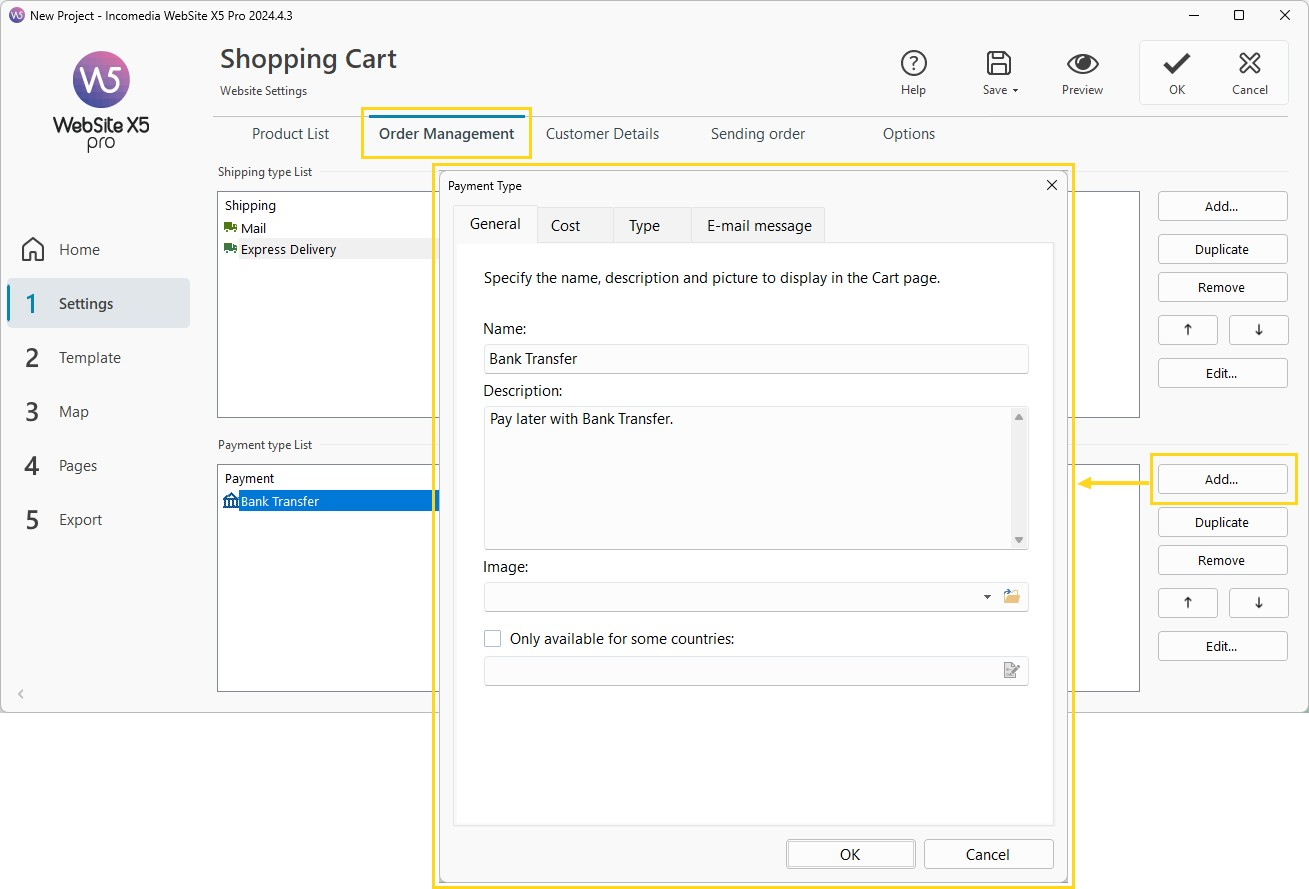 In the General section, you can define:
- the payment method Name;
- a short Description to be displayed to customers;
- an identifying Image, if desired.
This information will be used during the checkout process to help customers easily recognize the selected payment method.
3. How to limit its availability to specific countries
If your store sells to multiple countries, you can decide to make a specific payment method available only in certain geographic areas.
To do this:
- Enable the Available only for selected countries option.
- Click the
 button.
 - In the dialog that opens, select the countries where the payment method should be available.
This feature is particularly useful when the payment provider operates only in certain markets or when you want to offer different payment options depending on the customer's country.
4. How to configure payment costs and methods
In addition to the information displayed to customers, you can define how the payment method behaves and whether any additional costs should apply.
Set an additional cost
Open the Cost section and choose one of the available options:
- Fixed Cost, to apply a predefined amount;
- Percentage Cost, to automatically calculate the cost based on the order value.
If you do not want to apply any surcharge, simply set the value to 0.
Choose between immediate and deferred payment
Open the Type section and select the desired option.
| Type | Description | Examples |
| Deferred payment | Payment is completed after the order has been placed. | Bank transfer |
| Immediate payment | Payment is completed during checkout through an online gateway. | PayPal Commerce Platform, Stripe, Fabrick Payment |
If you choose Immediate Payment, select the desired Payment Type from those available and complete the configuration required by the provider.
Dedicated guides are available for some payment systems.
#tip - Learn more about PayPal Commerce Platform (see How to enable and use PayPal Commerce Platform as a payment method) and Stripe (see How to enable and use Stripe as a payment method).
5. How to customize the message included in the confirmation e-mail
Each payment method can include a description that will be automatically added to the order confirmation e-mail sent to the customer.
To customize it:
- Open the E-mail Message section.
- Enter the text you want to appear in the communication.
You can use this space, for example, to provide specific payment instructions, indicate processing times, or add useful information for the customer.
6. Save the configuration
Once you have completed the configuration:
- Click OK to confirm the changes.
The payment method will be added to (or updated in) the Payment Methods List and will be available in your store according to the settings you have defined.
Practical tips
For an effective configuration:
- give each payment method a clear and easy-to-understand name;
- limit its availability to the countries where the service can actually be used;
- always verify that it works correctly by placing one or more test orders;
- periodically check that the configured gateway credentials are still valid;
- whenever possible, offer customers more than one payment method.
In summary
WebSite X5 allows you to configure the payment methods available in your store in a simple and flexible way by defining their features, costs, geographic availability, and usage settings.
A proper configuration helps make the purchasing process clearer and more reliable, improving the customer experience and simplifying order management.