Compatibility:
WebSite X5 Evo and Pro
Engaging visitors does not just mean presenting content: it means giving them a voice. Whether it’s an in-depth article, an informational page, or a section dedicated to your services, allowing users to leave a comment or express a rating can make a real difference.
Comments help create dialogue, while ratings provide immediate feedback on the quality of the published content.
With the Comments and Ratings Object in WebSite X5, you can easily add an interactive section to your website where visitors can write opinions and/or assign a score. No technical skills are required: just a few steps are enough to activate a complete and customizable system.
When to use the Comments and Ratings Object
It is important to know that WebSite X5 offers multiple ways to manage comments and ratings.
- For Blog articles, the options to enable and manage comments and ratings are already available in the Article Page settings window (see, How to enable/disable comments for Blog posts?).
- For e-commerce products, the same functions are directly integrated into the Product Page settings window (see, How do you enable comments and reviews to increase customer trust?).
- The Comments and Ratings Object, on the other hand, should be used when you want to add comments and ratings to a “standard” page, such as an informational page, a review, a landing page, or any other section of the site that is not part of the Blog or the Store.
In this guide, we will therefore see how to correctly use the Comments and Ratings Object within the website pages.
What visitors see on the page
Once inserted and configured, the Comments and Ratings Object creates a section on the page dedicated to visitors’ opinions.
This section generally consists of:
- a short form that visitors can fill in to enter their comment and, if предусмотрено, assign a rating;
- the list of already published comments, with the opinions left by other users.
In this way, anyone visiting the page can read other users’ experiences and contribute to the discussion by leaving their own comment.
How to enable comments and ratings
If you have decided to allow your website visitors to leave comments or express a rating, proceed as follows:
- At Step 4 - Page, insert the Comments and Ratings Object, select it and click the Edit button (alternatively, double-click on the Object itself) to access the settings window.
- Select the Comment management system you prefer to use. You can choose between:
- WebSite X5: this is the internal WebSite X5 system and involves the use of a dedicated online Control Panel (see, How to set up the internal WebSite X5 system for managing comments?).
- Facebook: uses the Facebook Social Plug-in to manage discussions and comments (see, How to use the Facebook plug-in to manage comments?).
- Disqus: this is the system provided by Disqus (see, How to use Disqus to manage comments?).
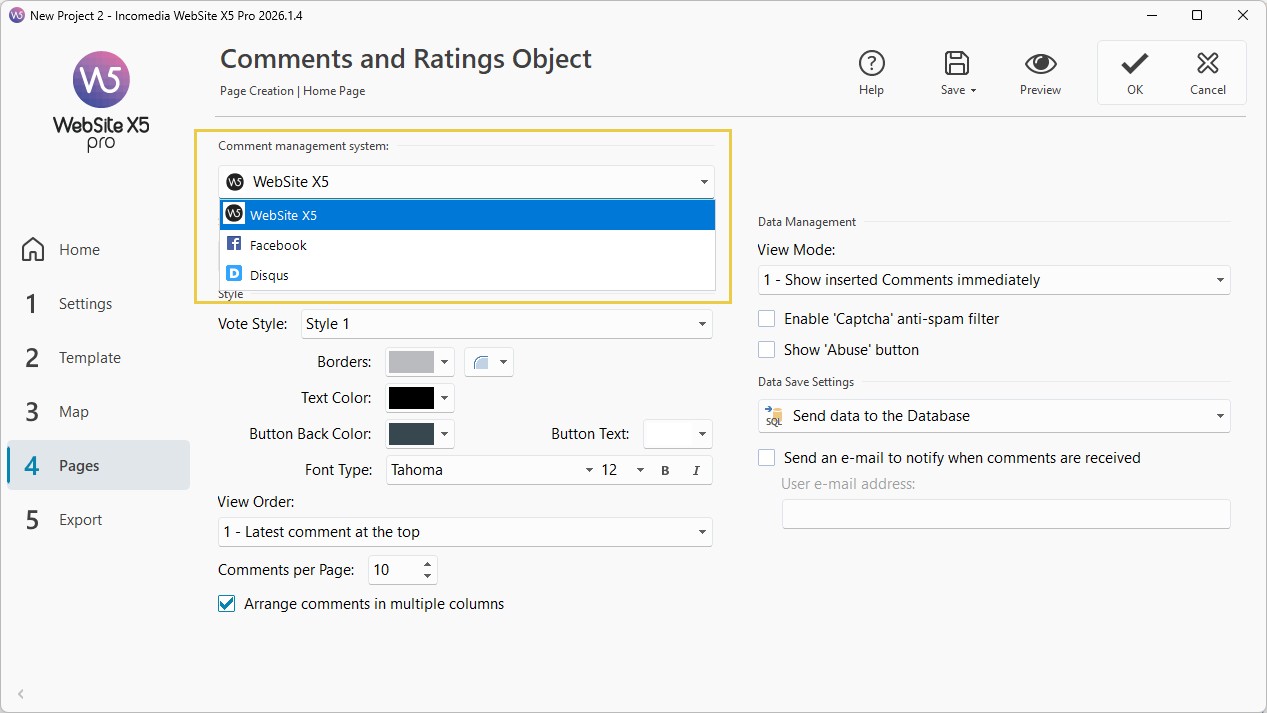
- Depending on the selected comment management system, set the necessary parameters to configure the service.
- When you are satisfied, confirm by clicking OK.