Compatibility:
WebSite X5 Evo and Pro
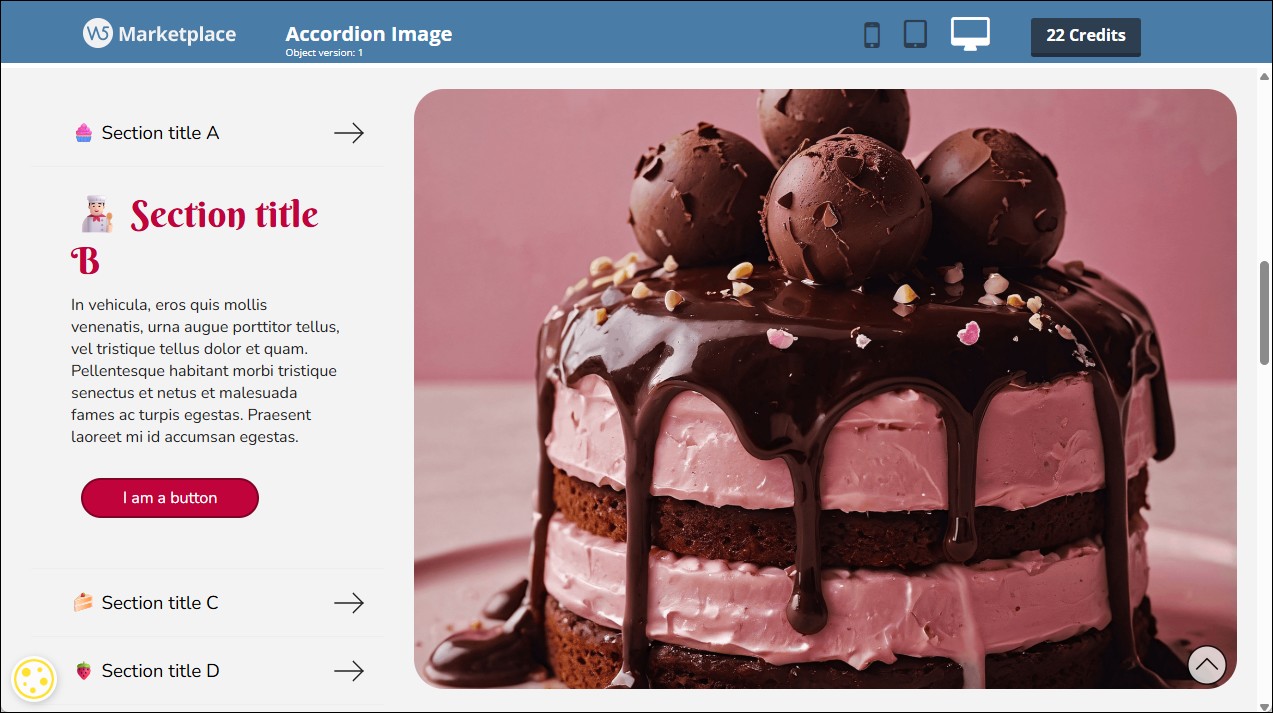
Sometimes the issue is not just how much text to include, but also how to make it clearer and more engaging. Presenting long content in a compact way is important, but adding a visual element can really make a difference.
With the Accordion Image Object you can organize content into expandable sections and, at the same time, associate an image with each block that changes dynamically based on the selection. This way you get a clean, interactive layout that is much more effective in communicating your content.
Check out some examples of what you can achieve on the Preview page.
How to add content
The ideal content for the Accordion Image is content divided into sections, each introduced by a title: service presentations, process steps, product features, etc.
Each section corresponds to a block and must include at least a title and a text, to which an image is associated.
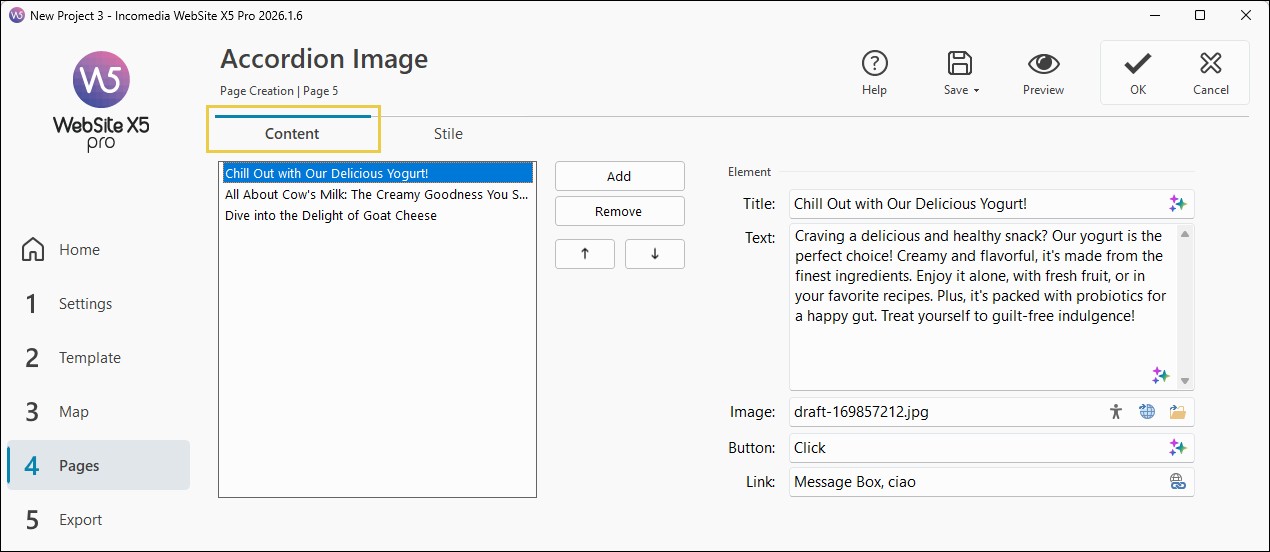
- Double-click on the inserted Accordion Image Object to access the window with all available options.
- Stay in the Content section and click the Add button to insert a new block into the list.
- Select the newly created block and enter the required information. For each block you can define:
- a Title;
- a Text, which is the actual content of the block;
- an Image, which will be displayed when the block is active. You can select it from those saved locally on your PC or from those available in the Online Libraries and make it accessible by adding Alternative Text (see Image accessibility: the importance of alternative text);
- a Button, by entering its text label (the style will be defined in the Style section);
- a Link, available if an image and/or a button is present. Click on
 to open the Link window and choose the action to be performed when clicking on the image and/or button.
- Repeat these steps to create all the required blocks.
- To modify the list of blocks, select the one you want to edit and use the Remove button to delete it or the arrow buttons to move it.
#tip - To write or edit titles, texts and button labels, you can useMagicText, the AI assistant integrated into WebSite X5.
How to define the graphic style
After adding the content, you can define the behavior and graphic style of the Object to adapt it to your website design.
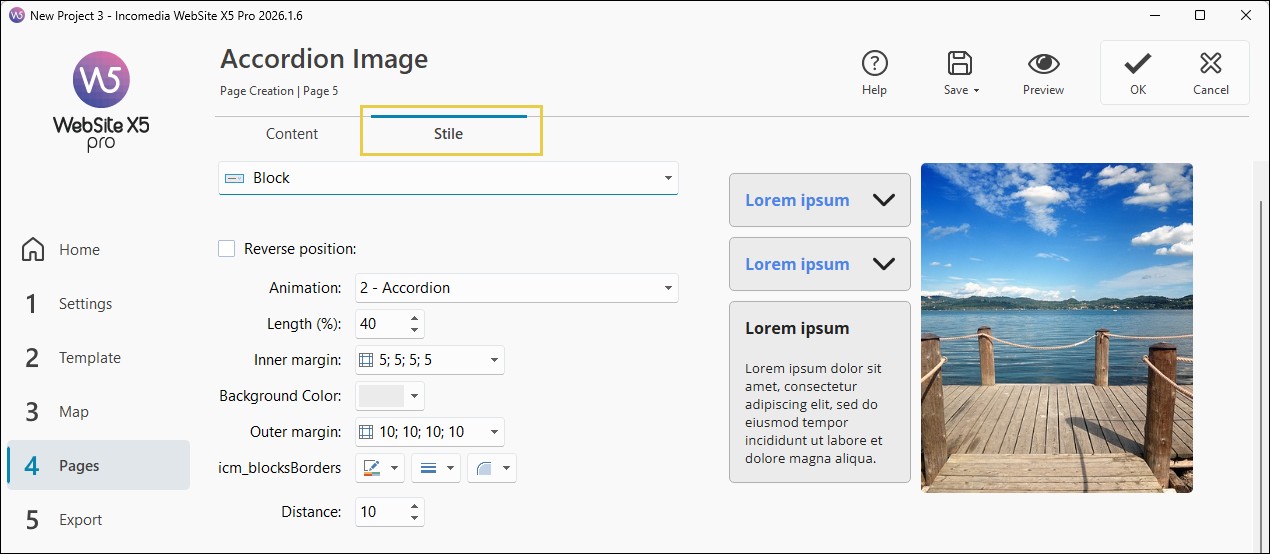
- Open the Style section to work on the individual elements of the Object.
- Select the Element you want to modify: Block, Title, Active Title, Icon, Text, Image or Button.
- Use the available options for each element to define layout, effects, borders, colors, fonts, margins and alignments.
- You can achieve very different results. When you are done, click Ok to confirm.
How the layout changes on smaller spaces
The Accordion Image Object is designed to automatically adapt to the available space, always ensuring good readability of the content.
Under normal conditions, images are displayed alongside the text blocks. However, if the space available for the text falls below a certain threshold (automatically defined by the program), the Object’s behavior changes:
- images are no longer displayed next to the text;
- instead, they are placed directly within the blocks.
In this way, the layout becomes similar to that of the Accordion Text & FAQ Object.
This can happen, for example:
- when, in desktop view, the Object is placed inside a column with limited width;
- when switching to lower resolutions, such as on tablets or smartphones.
This behavior is designed to prevent the text from becoming too compressed and difficult to read.
Ready to use it?
Do you want to make your content clearer, more dynamic and more visual? Install the Accordion Image Object now
Don’t have enough Credits to purchase this Object? See all Credit packages