Compatibility:
WebSite X5 Evo and Pro
Protecting a website from spam, automated registrations, and fraudulent activities is essential to ensure security, reliability, and a high-quality user experience.
For this reason, WebSite X5 allows you to integrate different CAPTCHA systems, tools designed to distinguish real users from automated bots and protect forms, registrations, and interactive areas of the site.
Choosing the most suitable CAPTCHA system helps improve security, accessibility, and the management of online interactions.
Why use a CAPTCHA
Using a CAPTCHA allows you to:
- protect contact and registration forms;
- reduce spam and unwanted automated submissions;
- improve overall site security;
- prevent abuse by bots;
- strengthen reliability and data protection.
How to choose the CAPTCHA type
To set up the protection system:
1. Access the security settings
- Go to Step 1 - Settings.
- Click the Privacy and Security button.
- Open the Security section.
2. Select the CAPTCHA type
- Under CAPTCHA Type, you can choose between:
- WebSite X5 CAPTCHA: this is the default option. It displays an image containing distorted letters on a noisy background that the user must enter correctly.
- Google reCAPTCHA v2 (Deprecated): users simply click to confirm that they are not a robot. Only if suspicious activity is detected may they be asked to complete an additional challenge, such as typing distorted text or matching images. Google considers this version deprecated: it can still be used on existing websites but is not recommended for new projects.
- Google reCAPTCHA v3 (Being phased out): automatically evaluates user behaviour and assigns a trust score, which the website uses to distinguish legitimate users from bots. Google is progressively shifting development toward reCAPTCHA Enterprise, so this is the recommended solution for new websites.
- Google reCAPTCHA Enterprise: this is Google's officially recommended solution. It analyses user behaviour during navigation (mouse movements, interactions, form completion times, and more) and, in most cases, requires no additional action from the user. Only suspicious activity may trigger further verification. It requires a Google Cloud account and includes a free tier of up to 10,000 assessments per month.
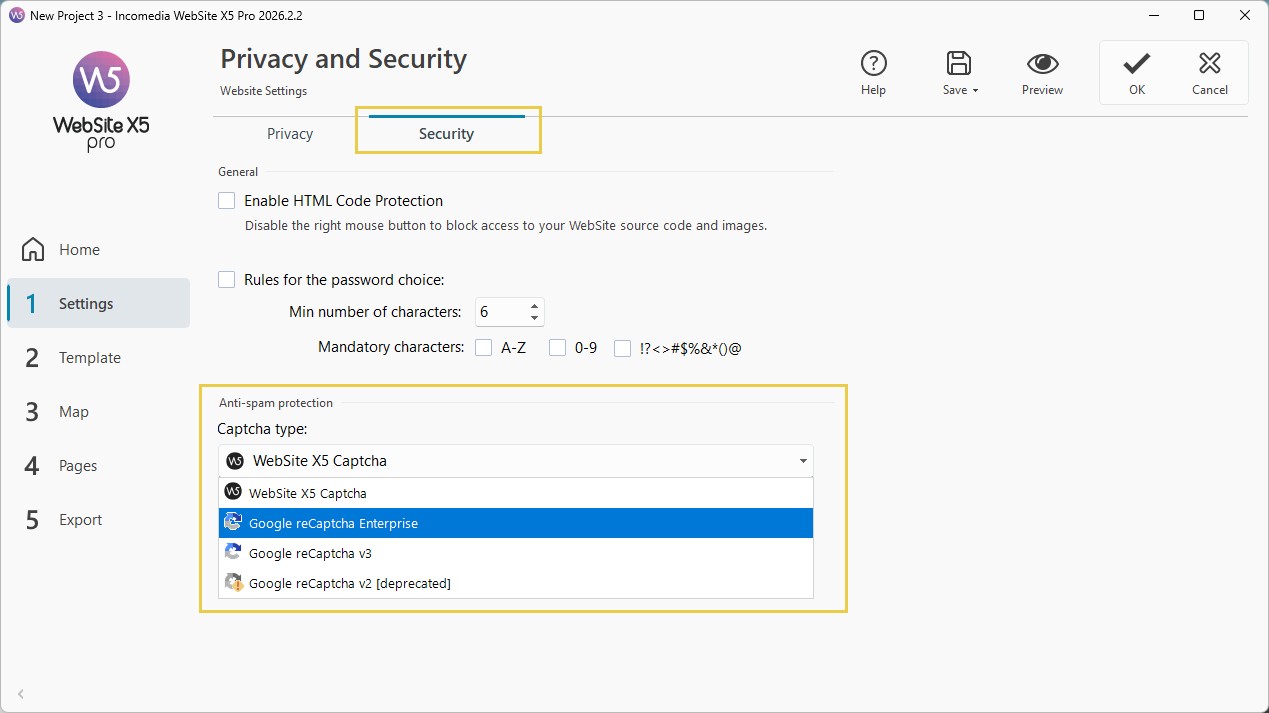
For new projects, Google reCAPTCHA Enterprise is generally the recommended choice, while reCAPTCHA v2 and v3 are mainly useful for maintaining compatibility with existing configurations.
#tip - Google reCAPTCHA. For more information about Google reCAPTCHA, registering your websites and obtaining the parameters required to use the service, click thebutton and visit the official website: https://cloud.google.com/security/products/recaptcha
3. Enter the configuration keys
Depending on the selected CAPTCHA type, WebSite X5 requires different parameters.
For Google reCAPTCHA v2 and v3, enter:
- Site Key: the public key associated with your website, used to display the reCAPTCHA widget.
- Secret Key: the private key used by the server to verify user responses. Never share it publicly.
#tip - Both keys are available from the reCAPTCHA Admin Console (https://www.google.com/recaptcha/admin). For new configurations, Google may automatically create the required Cloud project and enable the necessary APIs.
For Google reCAPTCHA Enterprise, enter:
- Project ID: the identifier of the Google Cloud project where you enabled the reCAPTCHA Enterprise API.
- Site Key: the key associated with the website registered in reCAPTCHA Enterprise.
- API Key: the Google Cloud API key, which must be created separately in the project's credentials.
#tip - For a detailed guide on obtaining these three parameters, see Google reCAPTCHA Enterprise. How do you obtain the required parameters and configure anti-spam protection for your website?
Where CAPTCHA can be used
After choosing the system, you can enable it in the main site tools, including:
- Contact Form Object (see: How do you enable CAPTCHA to protect email forms from spam?);
- Blog comment forms (see: How do you enable/disable comments for Blog posts?);
- automatic user registration (see: How do you enable automatic User registration?).
Practical tips
To achieve better results:
- prefer up-to-date systems;
- choose accessible solutions;
- carefully evaluate the required level of security;
- use reCAPTCHA Enterprise for new projects;
- always check that forms work correctly;
- periodically update security settings.
#tip - Accessibility. At the moment, WebSite X5 CAPTCHA is not yet fully accessible. For accessibility purposes, it is recommended to use Google reCaptcha.
In summary
CAPTCHA is an essential tool for protecting your website from spam and unwanted automated activities.
With WebSite X5, you can choose between different solutions, but for new projects it is advisable to opt for Google reCaptcha Enterprise, which offers the best balance between security, accessibility, and user experience.
Proper configuration of the CAPTCHA system helps make your website more secure, professional, and reliable.