Compatibility:
WebSite X5 Evo and Pro
From September 27, 2026, if a manufacturer offers a commercial guarantee of durability for a product that meets certain requirements, the seller must inform customers using the harmonized EU GARAN label. The label identifies which products benefit from this guarantee and how many years it lasts.
The label applies only to goods for which the manufacturer offers a free guarantee covering the entire product for more than two years. It should therefore not be added indiscriminately to the entire catalog and does not replace the notice about the legal guarantee of conformity, which concerns consumers’ rights against the seller.
With WebSite X5, you can specify which products are covered by a commercial guarantee of durability and provide the details needed to generate the official label. Let’s see what information to prepare and how to check the result in your online store.
When should you use the EU GARAN label?
Before configuring a product, check the terms of the guarantee offered by the manufacturer. The EU GARAN label is used when the guarantee:
- is offered by the manufacturer, not just the seller;
- is free of charge for the customer;
- covers the entire product, not just individual components;
- lasts more than two years.
For example, a free five-year guarantee offered by the manufacturer for the entire product can be indicated with EU GARAN. A two-year guarantee, coverage limited to a single component, or an extension available for an additional charge does not meet these requirements.
Before enabling the label, obtain the guarantee terms from the manufacturer and check that they apply to the exact model you sell. Among other things, the guarantee statement must explain how customers can make a claim and clarify that their rights against the seller under the legal guarantee remain unaffected.
Which details should you enter for the product?
The full label displays the guarantee duration, the manufacturer’s brand, and the model identifier. Before working on your catalog, have these three details ready exactly as they appear in the manufacturer’s documentation.
- Go to Step 1 - Settings > Shopping Cart > Products.
- Select the relevant product and open the Product Settings window.
- Enable the option for the commercial guarantee of durability.
- Enter the manufacturer’s brand, the model identifier, and the guarantee duration in years.
- Confirm your changes and repeat these steps only for other products that meet the requirements.
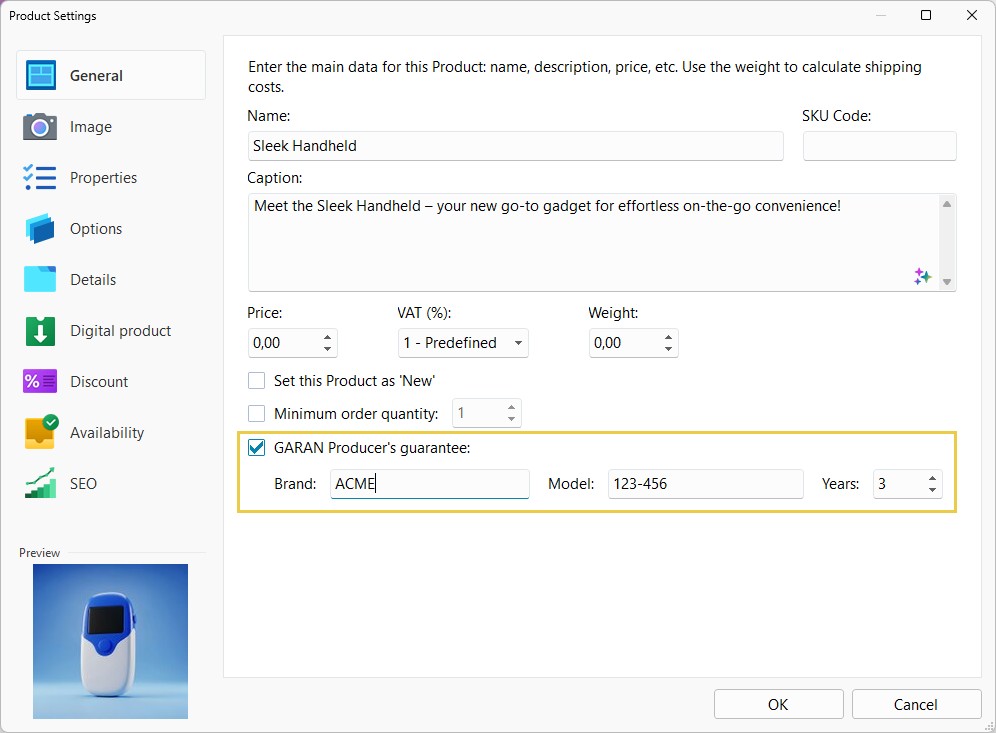
Pay particular attention to the model: similar products may have different guarantee terms. If the guarantee no longer meets the requirements or the product changes, update the details before republishing your store.
How is the label displayed in your store?
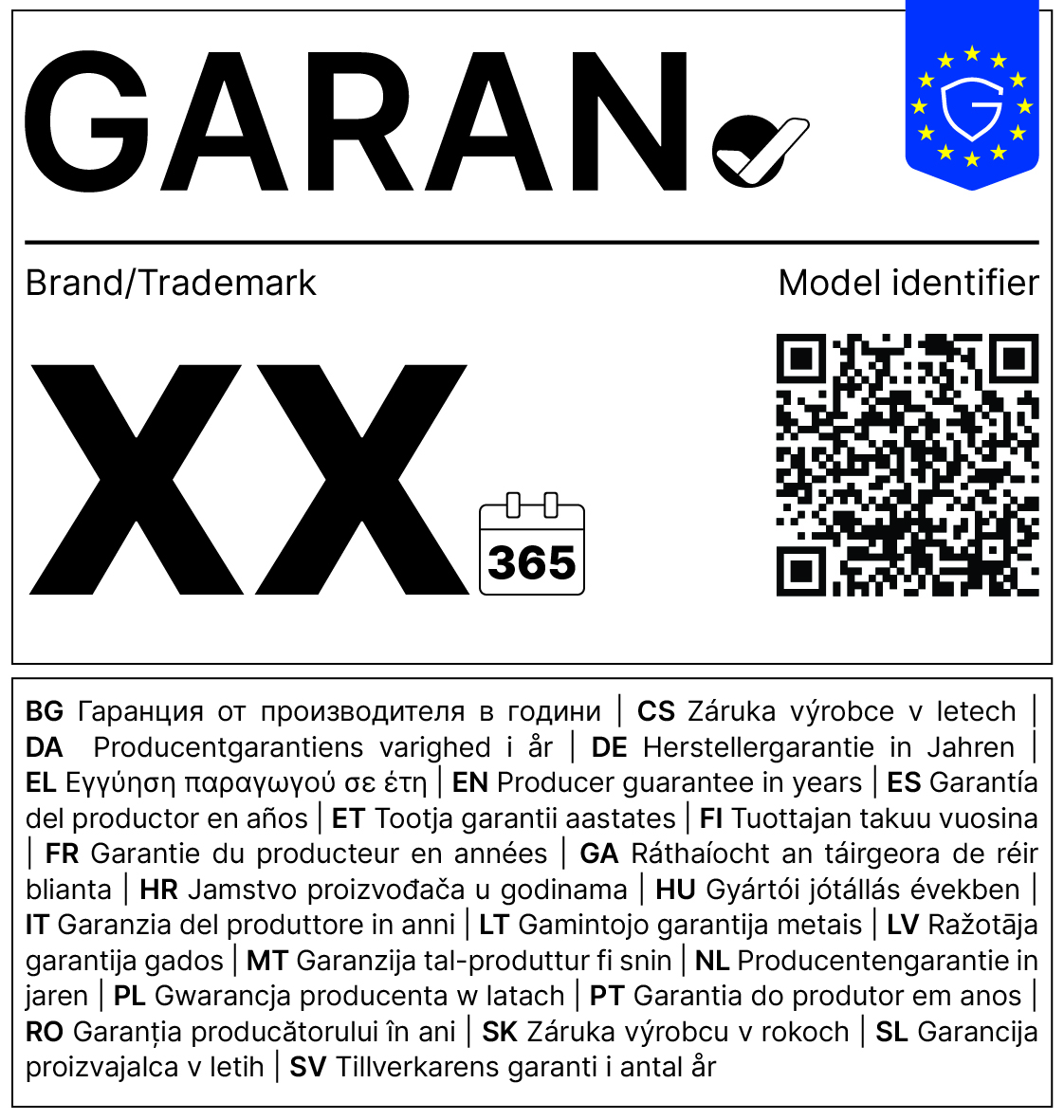
WebSite X5 uses the details you enter to generate the EU GARAN label with the official design provided by the European Commission. On the Product Page, customers see a compact version showing the guarantee duration in years, overlaid on the first image. They can open the full label to read the brand and model and access the QR code. The full label also appears in the product’s image gallery.
| Compact version | Full version |
 |  |
The compact version is also displayed at checkout, next to each item in the order for which the guarantee has been configured. Customers can therefore identify the relevant products before confirming their purchase. The label also appears in the order confirmation email for the same items.
To help customers find the guarantee details again after their purchase, make sure these products have a corresponding Product Page. In the Product Settings window, open Details and check that the product is linked to its Product Page. The link in the email leads to this page; if it is not available, it leads to the website’s Home Page instead.
How to make the guarantee terms available?
The label immediately indicates that a commercial guarantee of durability is available, but it does not contain all the terms for using it. Make sure customers can consult the manufacturer’s guarantee statement for the product they purchased.
You can make it available from the Product Page, for example as a downloadable document. Give the link a clear name, such as “Manufacturer’s commercial guarantee terms”, and check that the document matches the brand, model, and duration shown on the label.
If other commercial guarantees are also available for the product, describe them separately: customers must be able to understand which guarantee the EU GARAN label refers to and who is responsible for it.
What should you check on the published website?
After publishing, check that the label is correctly displayed with the product throughout the purchase process:
- Open the Product Page on a computer and a smartphone. Check that the label is associated with the correct product and that the full version is readable, without cropping or distortion.
- Check that the link next to the QR code works and that customers can consult the guarantee terms for that model.
- Place a test order containing one product with an EU GARAN guarantee and one without. Check that the label appears only for the first product at checkout and in the confirmation email.
- Open the link in the email and check that it leads to the Product Page with the guarantee terms.