Compatibility:
WebSite X5 Evo and Pro
From September 27, 2026, the new European consumer protection rules require sellers of goods to prominently display an official notice about the legal guarantee of conformity. This guarantee lasts at least two years from delivery: if a product is faulty or does not conform to what was purchased, the customer can ask the seller to repair or replace it free of charge. In the cases provided for by law, the customer can obtain a price reduction or a refund.
If you run an online store, you therefore need to obtain the notice prepared by the European Commission and make sure customers can easily find it while shopping. With WebSite X5, you can publish it on a dedicated page, add a clearly visible link to it on your website, and include it in the order confirmation email.
Remember: failing to display the notice may lead to action by the competent authority and a penalty. Let’s see how to meet these legal requirements.
Which notice should you use?
The first step is to obtain the official notice about the legal guarantee of conformity. You must display the official version and cannot replace it with your own text explaining the rights provided by the legal guarantee. Download the harmonized notice on the legal guarantee of conformity from the European Commission’s website. For your online store, choose the digital color version in the language your customers use.
Use the complete notice without changing its text, colors, proportions, or QR code. Next to the notice, you must also add a clickable link to the same destination as the QR code. For the Italian version, the link must lead to the Guarantees page on the Your Europe portal.
The legal guarantee concerns the relationship between the consumer and the seller and exists regardless of whether the notice is published. The notice informs customers of their rights.
How to create a dedicated page with WebSite X5?
Now that you have the official notice about the legal guarantee of conformity, you can prepare a dedicated page to display it. You can then link directly to this page from different parts of your store and from the order confirmation email.
- Open your project and go to Step 3 - Map.
- Add a New Page and give it an appropriate name, such as "Legal guarantee".
- We recommend placing it at the first level of your website structure so it is easy to access.
- This page does not need to appear in the main navigation menu: you can exclude it by clicking the Hidden button.
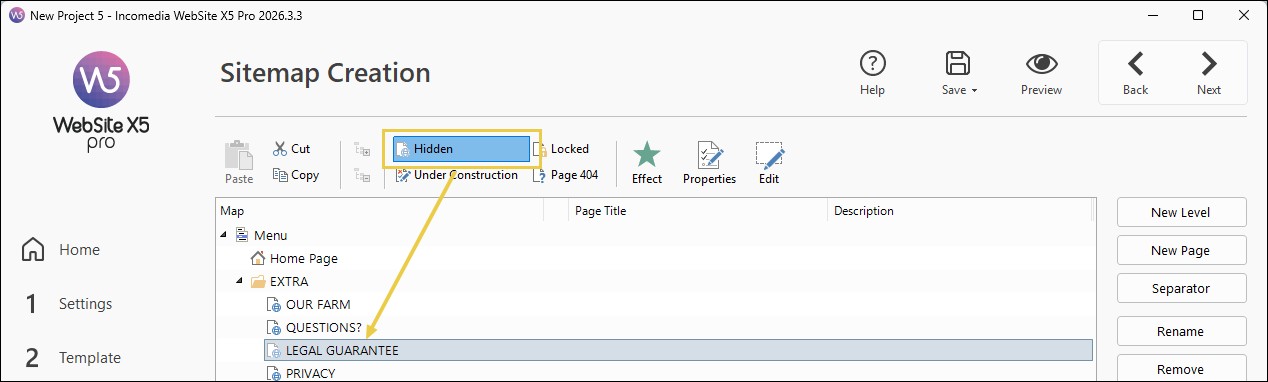
- Open the Page in Step 4 - Pages.
- Insert the official notice image, making sure it is fully visible and readable, without cropping or distortion.
- Next to the notice, add text with a clickable link to the destination indicated by the QR code.
- If you want to explain how customers can contact you about a problem with a purchase, add this information outside the official notice without changing its design.
If your store is available in multiple languages, add the official notice in the corresponding language to each version of your website.
How to make the notice easy to find?
Once you have created the page, make sure customers can easily access it before completing their purchase. One option is to add a clearly recognizable item, such as "Legal guarantee", to the Header and/or Footer, with a direct link to the page.
- Go to Step 2 - Template Content.
- Open the Header and/or Footer section and add the text "Legal guarantee".
- In the text editor, use the
 command to insert a link to the "Legal guarantee" page.
The link will then appear on pages that use the Header and/or Footer. Check that it remains visible throughout the checkout process and on smartphones.
#tip - Customers must be able to immediately recognize where to find the notice. A generic reference to the Terms and Conditions of Sale, which requires them to search for the information within another document, does not provide equally clear access.
How to include the notice in the order confirmation?
In addition to being easy to find on your online store’s pages, the official notice about the legal guarantee of conformity must also accompany the confirmation sent to customers after their purchase.
With WebSite X5, you can add both a link to the dedicated page and the official PDF to the email, so customers can keep the document with their confirmation.
- Go to Step 1 - Settings > Shopping Cart > Send Order to configure the confirmation email sent to the customer.
- In the email text, add an explicit label, such as “Your legal guarantee rights”, and link it directly to the dedicated page in your store.
- Use the attachment command
 in the email editor to add the official PDF of the notice in the appropriate language.
Checks after publishing
Before considering the work complete, check the result on your published website:
- open the Legal guarantee page on a computer and a smartphone, and check that the notice is complete and readable;
- go through the store to checkout and check that the link to the notice is visible and works;
- check that the link next to the notice leads to the same destination as the QR code;
- if your website is multilingual, check the notice and confirmation email in each language;
- place a test order and open the email received by the customer to check the link and attachment.