Compatibility:
WebSite X5 Evo and Pro
Can't get enough of image galleries and sliders? Neither do we. The curiosity is so great, we are always looking for new solutions to make the images of our websites stand out.
You can get a really effective slider using the Coverflow Optional Object. This tool creates the effect of a 3D cover carousel scrolling horizontally. Check out the Preview page and find out what you can achieve using this Object.

The slider created with the Coverflow Object can then include as many images as you want, but they will be displayed only 3 at a time: there will be a central image in foreground (see picture no. 2 below), together with a previous (see picture no. 1 below) and a following one (see picture no. 3 below). You will be able to scroll the images horizontally forward and backward, bringing each time a different image in central position.

How to set up the carousel
- Double-click the inserted Coverflow Object to access the window with all available options.
- Click the Add button to import the images that will make up the Gallery. By clicking the arrow on the Add button, you can choose whether to search for a
 Local file or use an
  Online Library (for more information, see How do I import a file?). The imported files are added to a list that you can freely reorder and edit.
#tip - Multiple selection. Hold down the CTRL key and click all the files you want to select in order to import them in a single step.
- Using the buttons

 you can choose whether the image previews in the list are displayed in small or medium size, making it easier to work.
 - Once the image list has been created, you can edit it at any time: in addition to adding new images, you can remove those you no longer need or move them to create a new order. To do this, simply select an image from the list and click the
 button to remove it or use the arrow buttons to move it. Remember that you can also reorder images by dragging the corresponding thumbnails.
 - Similarly, for each inserted image/video you can use the
 button to add a title and alternative text, which is useful both for accessibility and for SEO optimization of the page (see Image accessibility: the importance of alternative text).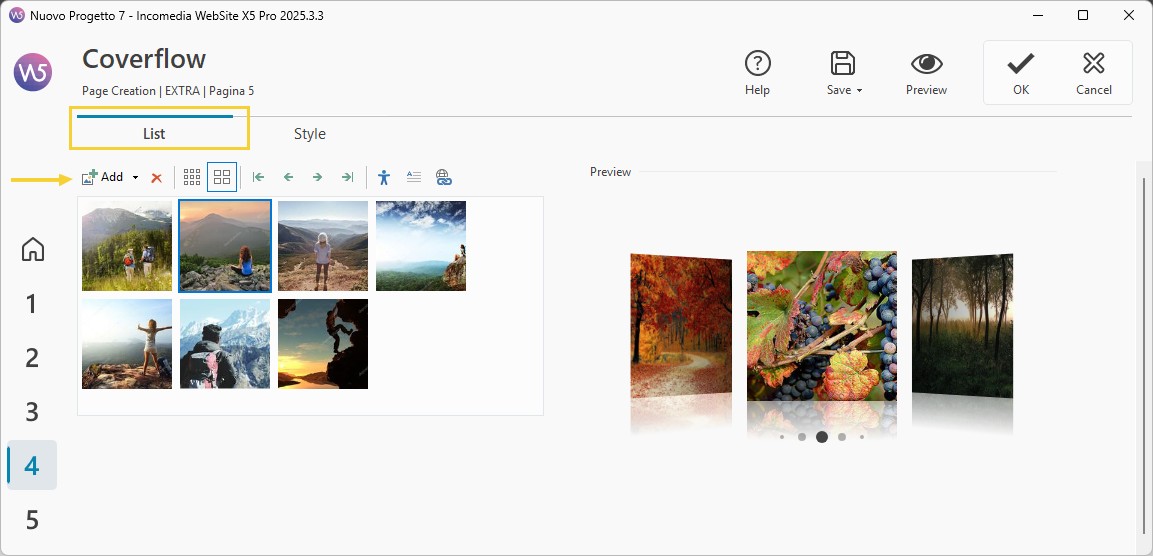
How to customize the carousel
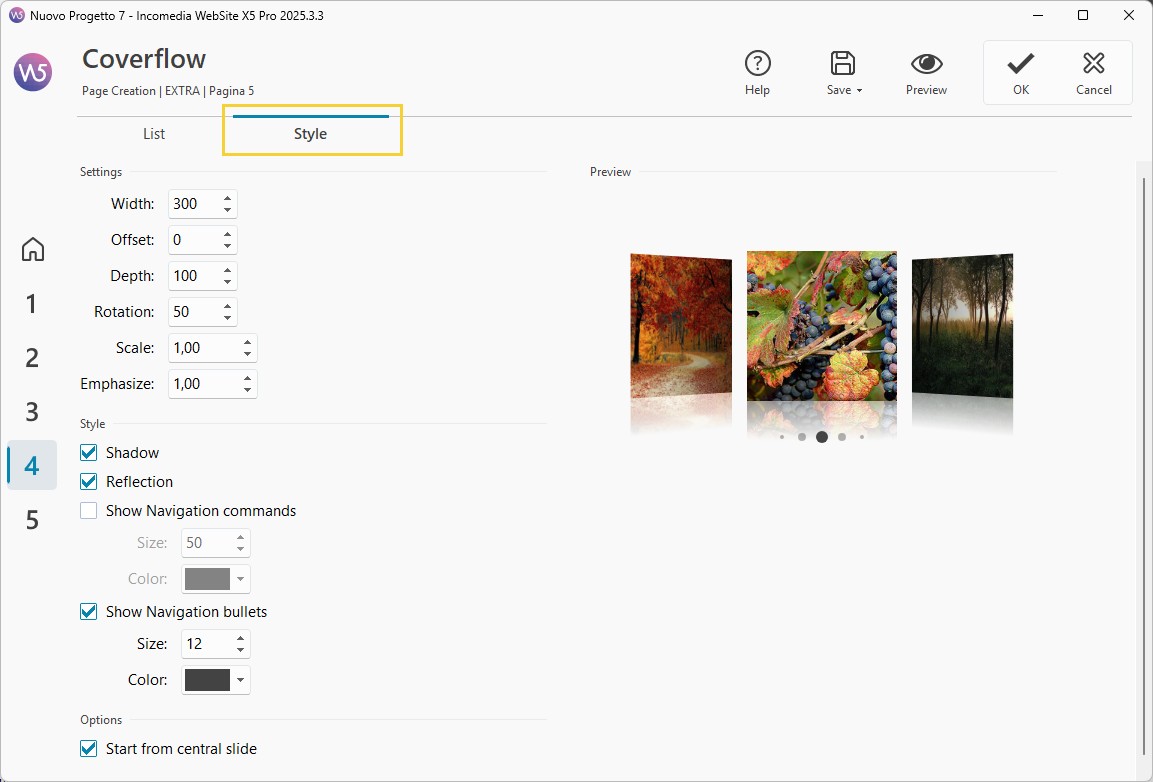
- Open the Style section and define the reported Settings. You can work on:
- the Width of each image and the Offset from one to the other;
- the Depth, to specify how much the lateral images should appear to be shifted backward from the main one;
- the Rotation, and define whether the lateral images must be set flat (like the central image) or if and by how much they should be rotated on their vertical axis;
- the Scale, i. e. the ratio of the lateral images size to the one of the central image. If for instance you set the Scale to 1, all the images will have the same size. If you, on the other hand, set the Scale to 0.5, the lateral images will be half as big as the central one.
- Among the other Settings, you will also find the Emphasis option: use it to accentuate (by setting a value above 1) or tone down (by settings a value below 1) the settings you have previously defined.
- You can now move on to the Style. You can decide whether the following elements should be displayed or not:
- the Shadow for the lateral images;
- the Reflection underneath all the carousel images;
- the Navigation commands and the Navigation bullets, which are useful to scroll the images: for both elements, you can define the Size and Colors.
- Finally, you can activate the Start from central slide option, so to have the central image from the list of imported files displayed as first central image when opening the gallery.
How to add descriptions and links on the images
You can easily optimize each image added to the Coverflow Object:
- Go back to the List section and select the thumbnail of the image you want to work on, then click on
 Description.
You can also add links to the images:
- Select the thumbnail and this time click on
 Link.
Link. - On the following window, select the wished option and click OK.
Repeat these steps for all the images you want to add a description and/or a link for. The images you have already worked on will be marked with an icon similar to the one used for the command buttons.
Are you curious to use this Object on your website pages? Install Coverflow now
You don't have enough Credits to buy this Object? Check out our Credit Packs