Compatibility:
WebSite X5 Evo and Pro
In many situations you may want your visitors to download a file from your website: a pdf catalog, an image archive, a music track, an ebook or a software. In such cases, you should use the Download Button Object. Check it out on this Preview page.

Do you want to find out how Download Button works? Check out this video or keep reading:
How to define the button style and associate the file to download
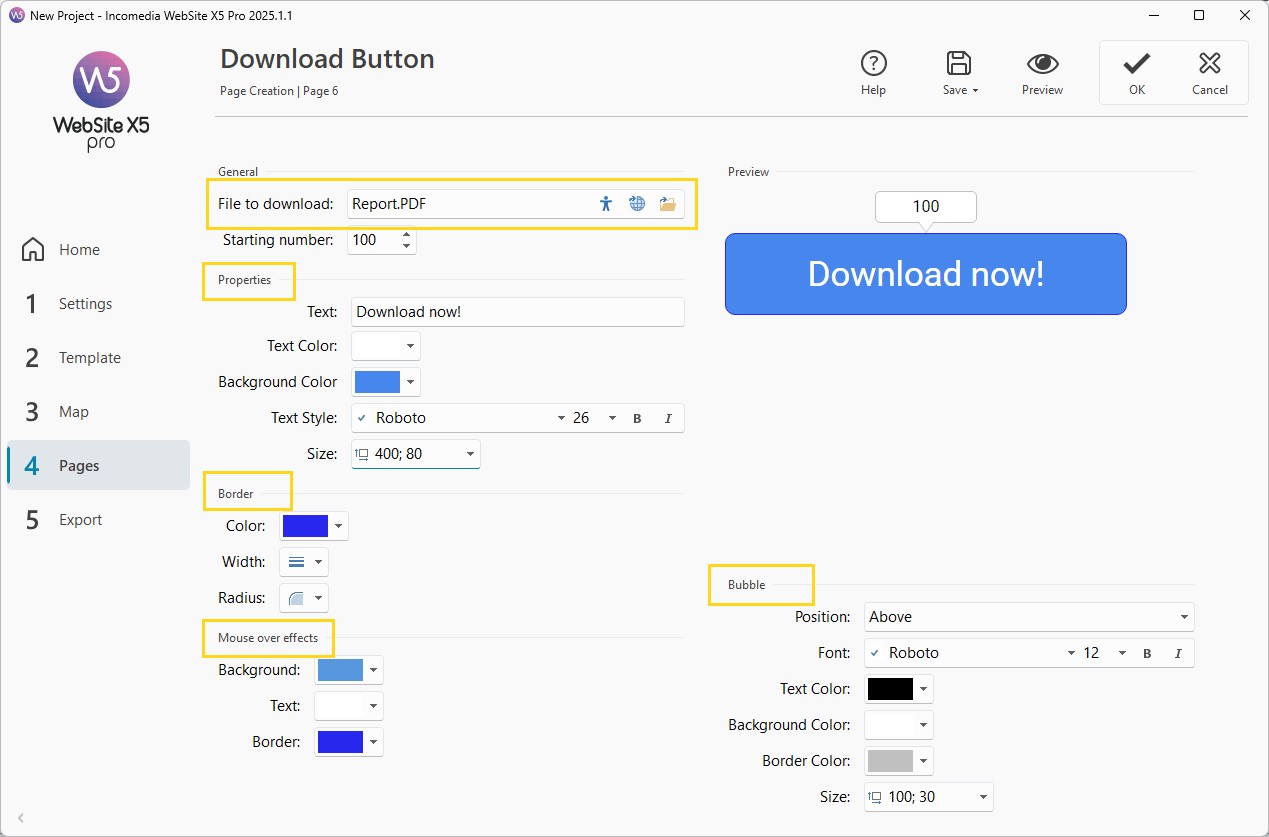
- Double-click on the Download Button Object you added on the page to open the settings window.
- Click on the
 Local File or on the
  Online Library button to import the File to download: you can use the most popular formats.
 - Define the Text, that is, the label that should appear on the button.
- Use the options in the Properties and Border sections to define the button style in its normal state by adjusting colors, thicknesses, borders, and sizes.
- Use the options in the Effects section to define how to button should look like on mouse over.
- Click on Ok when you're happy with the result.
How to add a download counter
You can also setup a download counter displaying the number in a bubble connected to the button.
- In the Bubble section, use the Position option to decide where the bubble should be displayed relative to the button. If you choose None, the bubble with the counter will not be shown.
- Use the options in the Bubble section to define its appearance. You can format the text, choose the colors of the various elements, and set the size in pixels.
- If you don’t want the counter to start from zero, you can set the Starting number using the option available in the General section.
4 tips to create efficient buttons
Buttons are generally very important for a web page. To make them more efficient, you need to follow these rules:
- Carefully select the CTA (Call to Action) for your button label: it should be brief, direct and clear, so that the readers will immediately understand what will happen by clicking.
- Put some effort in the graphic style: choose some colors that get along well with the rest of the template, but make sure they create a contrast with the background.
- Use animations and effects: micro-interactions will help the visitor recognize and use your buttons.
- Try different CTAs, colors and effects: don't forget the most effective solution isn't always the one you graphically like the most.
Accessibility note
Clear and descriptive text, adequate contrast, and the proper use of effects and animations are essential to ensure that buttons are accessible to everyone, including users who navigate with screen readers or keyboard only.
For accessibility, it is also important that any background images have an Alternative Text: you can define it by clicking the  button you find in the file import field (see Image accessibility: the importance of alternative text).
#tip - Alternatives. You can create your buttons also by using the Button Object which you can find in the list of the Page main Objects. Try the Animated Button and Hover Button Optional Objects too and choose the one which better suits your needs.
Are you curious to use this Object on your website pages? Install Download Button now
You don't have enough Credits to buy this Object? Check out our Credit Packs.