Compatibility:
WebSite X5 Evo and Pro
To collect and manage comments and ratings from your website visitors, you can choose to use the internal WebSite X5 system, the Facebook Social Plug-in, or Disqus.
In this guide, we will focus on the internal WebSite X5 system and see how to proceed to:
If you use the WebSite X5 internal comment management system you can rely on the online Control Panel, which is automatically available for every WebSite X5 project (see: How to manage comments through the online Control Panel).
The internal comment management system
Once selected, the WebSite X5 internal comment management system can be configured in this way:
- Select the Content Type your readers will be enabled to leave. They can just comment, or just report a Vote, or even both.
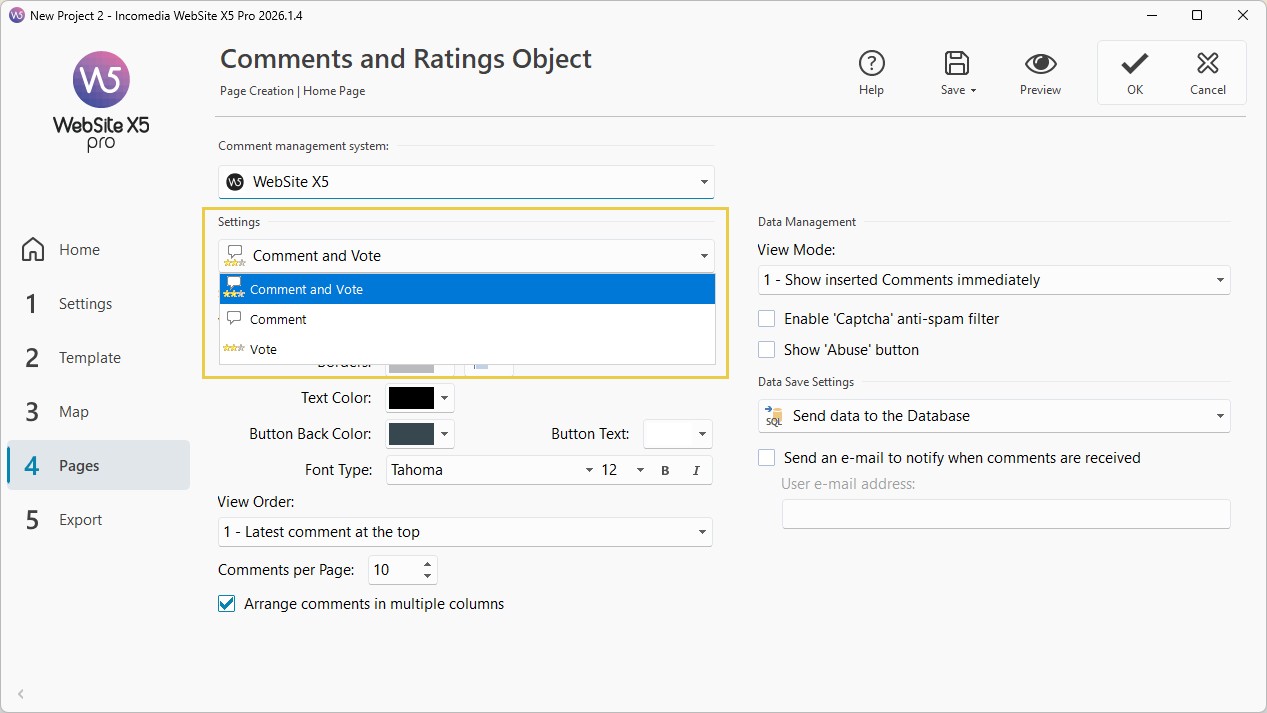
- Obviously, depending on the choice made, different customization options are available. For example, if you want ratings to be displayed, you can choose the Rating Style, i.e. the style of the stars.
- If you choose to display comments as well, in addition to the Rating Style you can also adjust the Font, Colors and Borders of the text and/or buttons.
- You can define how comments are organized by setting the Display Order (from most recent to least recent, or vice versa), specifying a maximum value for the Number of comments per Page and deciding whether to Display comments in multiple columns.
- At this point, if you prefer to review comments before they are published, simply select the option Display comments after approval from Control Panel as the Display Method.
- Finally, for greater security, it is advisable to enable the Abuse button, so that your readers can report any improper behavior, as well as activate the Captcha anti-spam control.
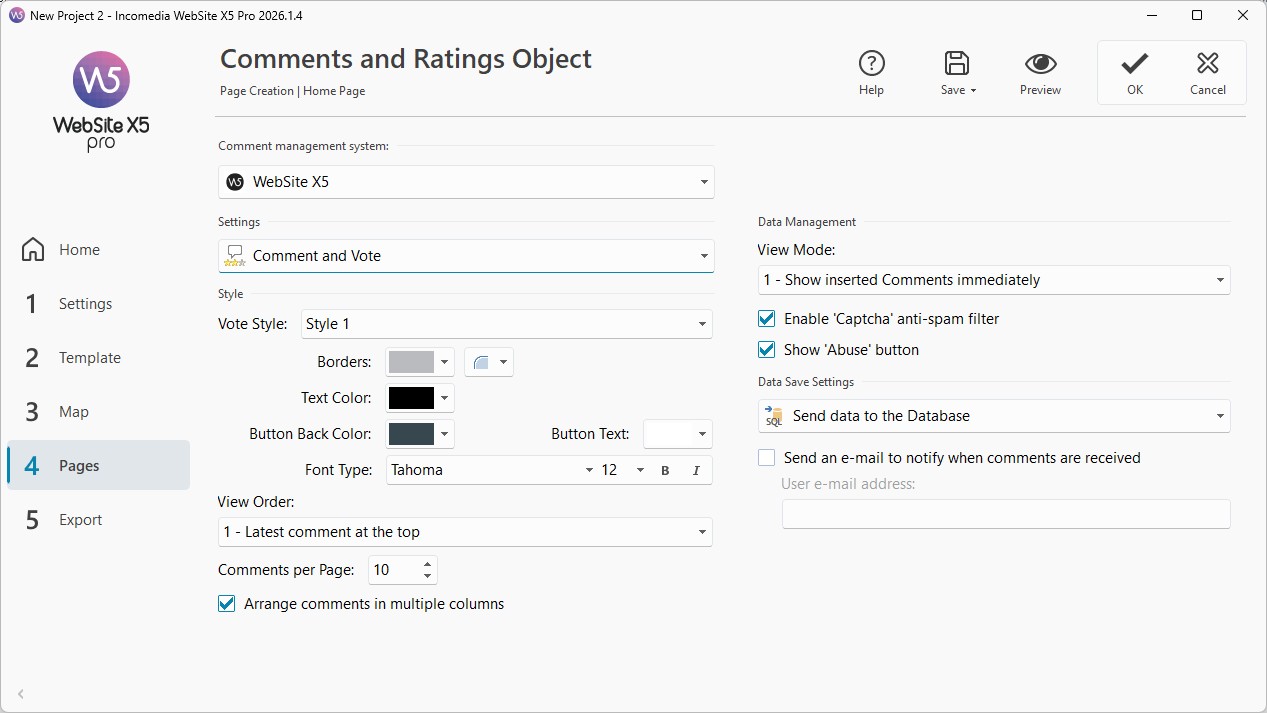
The Data Save Settings
Let's have a deeper look at the last step referred to the data storage.
Before leaving their comments, readers need to fill in a form providing their Name, E-mail and finally their Message. All these fields are mandatory. You need to save the data you get from this form, and you can choose between sending them to a file or to a database.
1. Send data to a file
If you are using the Evo edition, this is the only option you have.
The collected data are saved in a file in a specific Server folder.
In this case, you just need to specify the sub-folder within the Server folder with write access though PHP where the collected data needs to be saved.
If you don't report any sub-folder, the collected data will be directly saved in the main Server folder.
2. Send data to a Database
The collected data are automatically sent to the specified MySQL database linked to the project.
#tip - Database and project export. If you decide to export your website using the Webspace offered by WebSite X5, you don't have to do anything: the database and server connection parameters are already integrated. If, on the other hand, you choose another Provider, you will need to report them manually. Please see: How to export your website using a Hosting Service different from the one included with WebSite X5.
New comment automatic notification
Regardless the data save system you chose, you can always decide to receive a notification e-mail when a reader leaves a comment on a blog post:
- Activate the Send an e-mail to notify the comment has been received option
- Type in the User e-mail address field the e-mail address you will be using to receive the notifications.