Compatibility:
WebSite X5 Evo and Pro
Do you want to create a Page made up of large blocks that fill the entire height of the Browser window and follow one another while scrolling like presentation slides?
With the Full Height function, you can make the Page Sections at least as high as the viewport and, if you want, add automatic scrolling and controls that help visitors move from one Section to another.
By working on the Row style and using the Full Height property, it is easier than you might think. Here is what you need to know and how to proceed.
How Full Height works
In WebSite X5, the height of a Section normally depends on the Objects it contains. With Full Height, instead, each Section used as a slide occupies at least the full height of the Browser window.
This way, while scrolling, visitors move from one block of contents to the next as if they were browsing through a series of slides.
Full Height does not set a fixed height, however. If the viewport is small, the contents in the Row determine its minimum height. On the other hand, if the viewport is very large, the contents are displayed centered.
How to prepare the Page Sections
Before activating Full Height, organize the Page as a sequence of independent blocks: each one will become one of the slides displayed while scrolling.
Proceed as follows:
- Go to Step 4 - Pages and open the page you want to work on.
- Add all the necessary Objects to the Layout Grid.
- Organize the Rows that need to form a single block within the same Section.
- Create a new Section whenever the next slide needs to start.
- Repeat the operation until the Page is divided into the required blocks.
A Section can therefore include a single Row or multiple Rows: what matters is that all the contents that need to be displayed as a single slide belong to the same Section.
#tip - For more information on how to create and organize Sections in the Grid, see Page Sections. How do you create layouts with different structures?
How to activate Full Height
After preparing the Sections:
- Click the
 Section Style button.
 - Open the Full Height section.
- Activate the Enable Full Height view for all Sections on this Page.
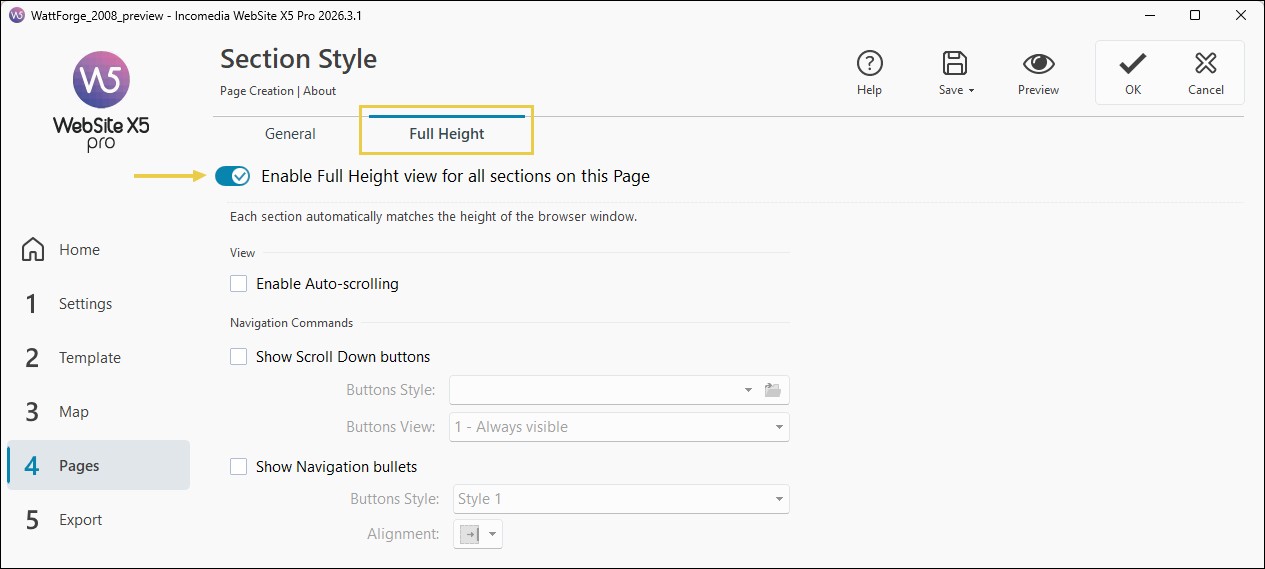
From this point on, the Page Sections are managed as blocks that occupy at least the height of the Browser window.
How to activate automatic scrolling
If you want to make the transition from one slide to the next more evident, in the Full Height section you can activate the Automatic scrolling option.
When a new Section starts to appear while scrolling, WebSite X5 automatically scrolls the Page until the Section is brought fully into view.
This makes the transition between the different parts of the Page more similar to browsing through a presentation.
How to add buttons to move to the next Section
You can make navigation even easier by adding a button at the bottom of each slide.
To do this:
- in the Full Height section, activate the Show scroll down buttons option;
- define the button style by choosing the image you want to use;
- choose whether the buttons should always be visible or appear only when the mouse is moved over them.
By clicking the button, the visitor automatically moves to the next Section.
How to show the position on the Page
In the Full Height section, activate the Show position indicator option and use the available settings to:
- choose the indicator style;
- define its alignment on the Page.
Visitors can click the indicator directly to bring the desired Section into view.
What happens if a Section contains a lot of content
Full Height works best when each slide contains an amount of content that fits the space available in the Browser window.
This does not mean, however, that the contents are cropped or compressed to fit the height of the viewport.
If texts, images, or other Objects require more space, the Section expands as much as necessary to contain them. Full Height therefore sets a minimum height, not a maximum limit.
Practical tips
For effective slide-style scrolling:
- consider each Section as an independent content block;
- avoid placing too much content in a single slide;
- check the result using Browser windows with different heights;
- use Automatic scrolling when you want to emphasize the transition from one Section to the next;
- add buttons or a position indicator especially on Pages made up of many slides;
- always check the result in Preview.
#tip - If you want an effect that is even more similar to a full-screen presentation, you can consider hiding the Header and Footer for the Page. This configuration allows Full Height Sections to occupy more of the available space in the Browser window.