Compatibility:
WebSite X5 Pro | Agency
An Object’s settings let you define its appearance, but some customizations require changes to the code. If you know CSS, you can use the Code command to add custom style rules.
Some Objects also provide documented CSS variables: these let you adjust specific properties, such as colors, spacing and borders, by following the instructions in the relevant guide.
When to use CSS code
All Objects, both built-in and Optional Objects, can be configured through their settings window. To open it, select the Object in the Page Layout Table and click Edit, or double-click the Object.
Before adding code, check whether you can achieve the desired result with the options already available.
Custom CSS is useful when you want to adjust visual details beyond those managed through the interface. However, it requires knowledge of CSS and checking the result at different resolutions.
How to open the editor and enter the code
- In Step 4 - Pages, open the page containing the Object you want to customize.
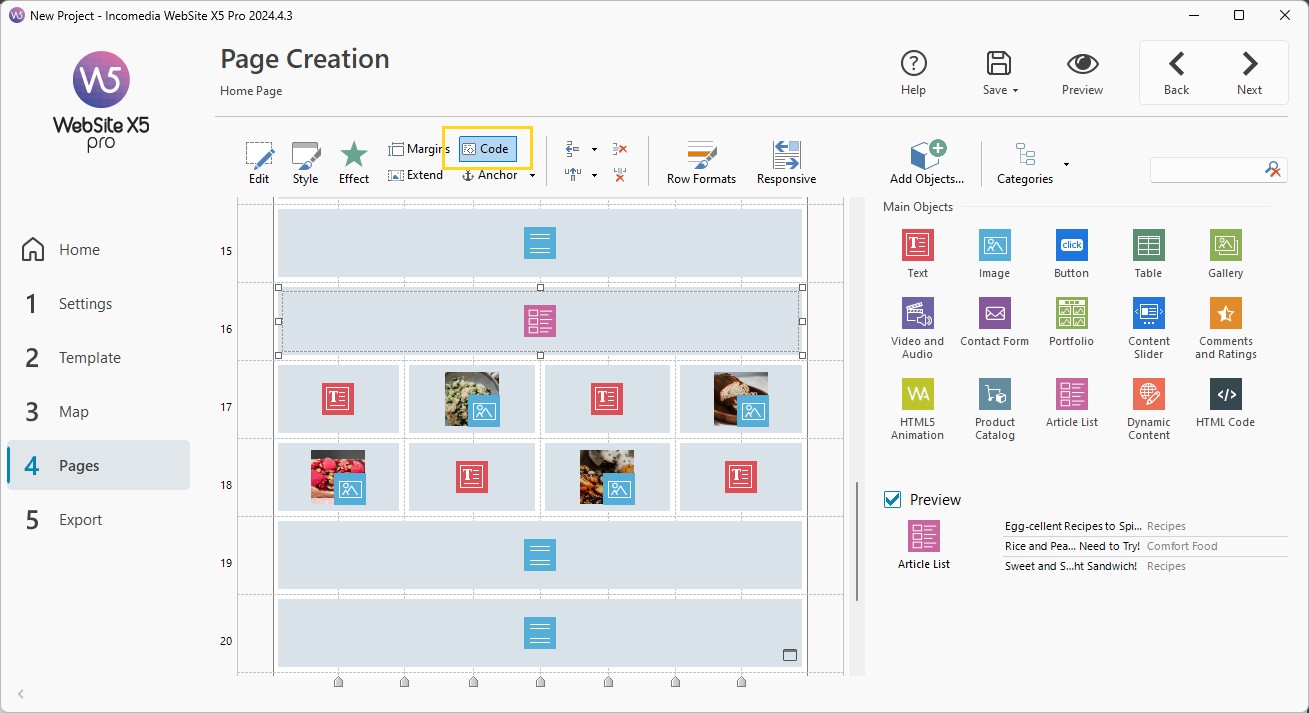
- Select the Object in the Page Layout Table.
- Click the Code button to open the CSS Code window.
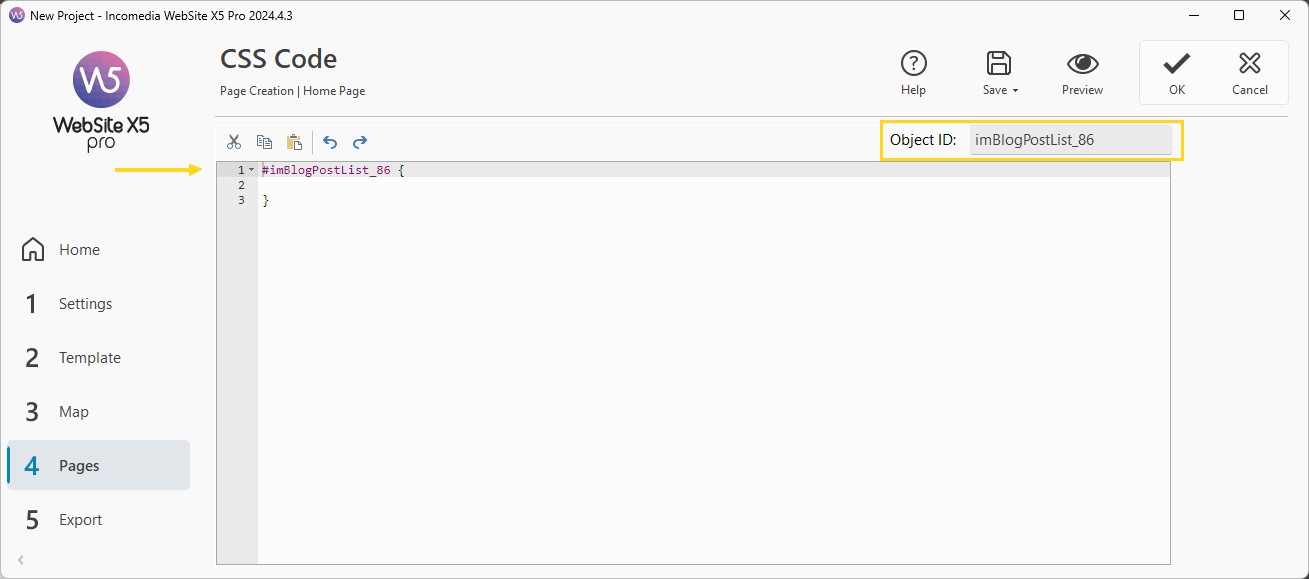
- Enter your style rules in the editor, which is already initialized with the selected Object’s ID. Keep this reference to target the Object you are working on.
- Confirm your changes and open the Preview to check the result.
Custom CSS lets you change specific style properties of the Object. It does not necessarily replace all the code generated by WebSite X5: its effect depends on the rules you enter and the elements they apply to.
#tip - In the Page Layout Table, Objects with custom CSS code can be identified by theicon overlaid on the cell they occupy.
How to use an Object’s CSS variables
For Objects that provide them, you can use the CSS variables described in their documentation.
A CSS variable has a name beginning with two hyphens, such as --osm-popup-padding, and a value that determines a visual property. By changing the value, you can customize that property without having to recreate the style rules that use it.
To apply a customization:
- Open the guide to the Object’s CSS variables.
- Find the variable for the property you want to change.
- Check the allowed values, units of measurement and any specific instructions.
- Open the Object’s CSS Code window and enter the declaration using the selector and structure shown in the guide’s example.
- Replace the example value with your desired value and check the result in the Preview.
Use variable names exactly as they appear in the documentation. An Object’s variables cannot automatically be used with other Objects: always refer to the guide for the Object you are customizing.
#tip - If you copy an example from the documentation, replace any Object ID in the example with the one in your editor. Do not replace your Object’s ID with the one used in the example.
How to check your customizations
After entering the code, open the Preview and check:
- that the change affects the intended Object;
- that text, images and controls remain readable and usable;
- that the result is correct at different resolutions;
- that any interactive states, such as selection and mouseover, are still recognizable.
Make a few changes at a time: this will make it easier to identify which declaration produces an unexpected result.
Check your customizations again after an Object update, too.
How to edit or remove custom code
To adjust a customization, select the Object again and open the CSS Code window.
Edit or remove the declarations you added, confirm and check the result in the Preview. To undo all your customizations, delete the rules you entered manually.