Compatibility:
WebSite X5 Evo | Pro | Agency
A website does not necessarily have to consist of many pages. In some cases, a simple, immediate structure designed to guide visitors along a single path can be much more effective.
One Page websites are designed precisely with this goal in mind: gathering all the main contents on a single page organized into Sections that can be easily reached through the navigation menu.
This solution is particularly suitable for:
- simple showcase websites;
- landing pages;
- portfolios;
- company presentations;
- events;
- local businesses;
- professionals and freelancers.
Thanks to scrolling navigation, visitors can quickly move from one Section to another without changing page, making browsing smoother and more immediate.
With WebSite X5, you can easily create a One Page website by organizing the contents into Sections, assigning an Anchor to each one, and linking the menu items to the corresponding Anchors.
The main steps are:
- Organize the website structure
- Create the Page Sections
- Assign an Anchor to each Section
- Link the menu to the Sections
#tip - A One Page website can be a very effective solution when you want to present a limited amount of information clearly, quickly, and in a way that is easy to browse even on smartphones.
How to create a One Page website step by step
1. Organize the website structure
The first step is to prepare a structure suitable for a One Page website.
In this type of project, there is only one actual page: the Home Page. The menu items are used to move between the different Sections of the same Page.
To set up the structure:
- Open a new project and go to Step 3 - Sitemap Creation.
- Delete all the pages included by default, leaving only the Home Page.
- Use Levels to create the navigation menu items.
For example, you can create a website with these sections:
- Welcome
- Services
- Contacts
To do this:
- Click the New Level button.
- Rename the Level with the name of the first item, for example “Welcome”.
- Repeat the operation for “Services” and “Contacts”.
This creates the navigation structure for the One Page website.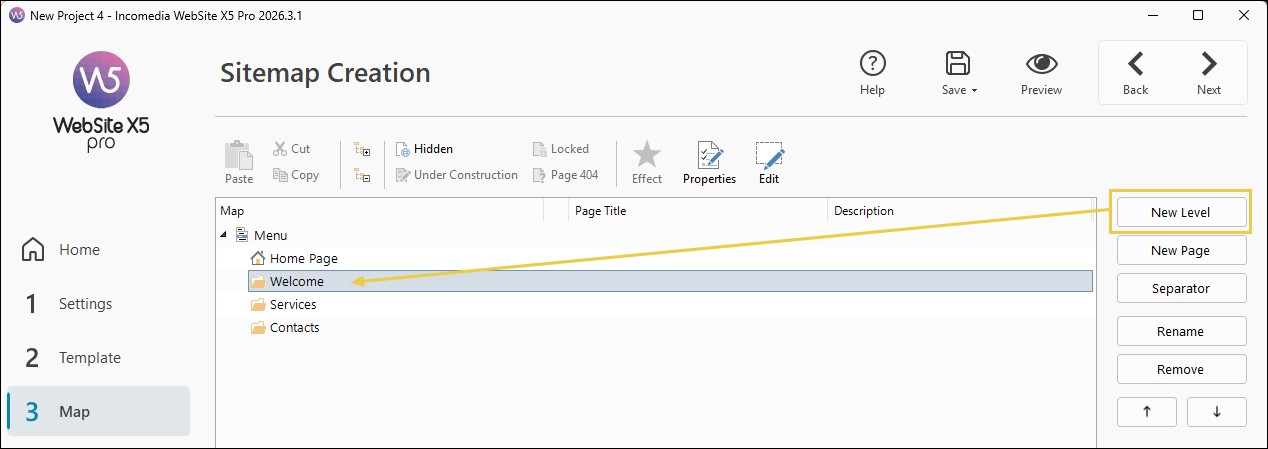
Once the structure is complete:
- Select the Home Page.
- Click Next to go to Step 4 - Page Creation.
#tip - For One Page websites, it is advisable to keep the menu simple and include only a few items, so navigation is more immediate.
2. Create the Page Sections
At this point, you can create the Home Page contents and organize them into the different Sections of the website.
In our example:
- “Welcome” will be the introductory Section;
- “Services” will present what you offer;
- “Contacts” will include contact details and a contact form.
To organize the Page:
- Add the Objects needed for the “Welcome” contents to the first Section.
- At the end of these contents, use the New Section command to start the “Services” Section.
- Add the Objects dedicated to your services.
- In the same way, create a new Section for “Contacts” and add the related contents.
Each Section can have its own row and column structure. You can therefore choose the layout that best suits the contents it needs to contain without affecting the structure of the other Sections.
#tip - For more information, see Page Sections. How do you create layouts with different structures?
3. Assign an Anchor to each Section
To allow the menu to reach each Section directly, you need to create the corresponding Anchors.
Anchors are references that identify specific points on the Page and can be used as the destination of a link.
For a One Page website, assign the Anchor to an Object in the first Row of the Section you want to reach.
For example:
- Select an Object in the first Row of the “Welcome” Section;
- Click
 Anchor > Insert Anchor.
 - Give the Anchor a recognizable name, for example "Welcome".
- Repeat the same operation in the first Row of the “Services” and “Contacts” Sections, using different names.
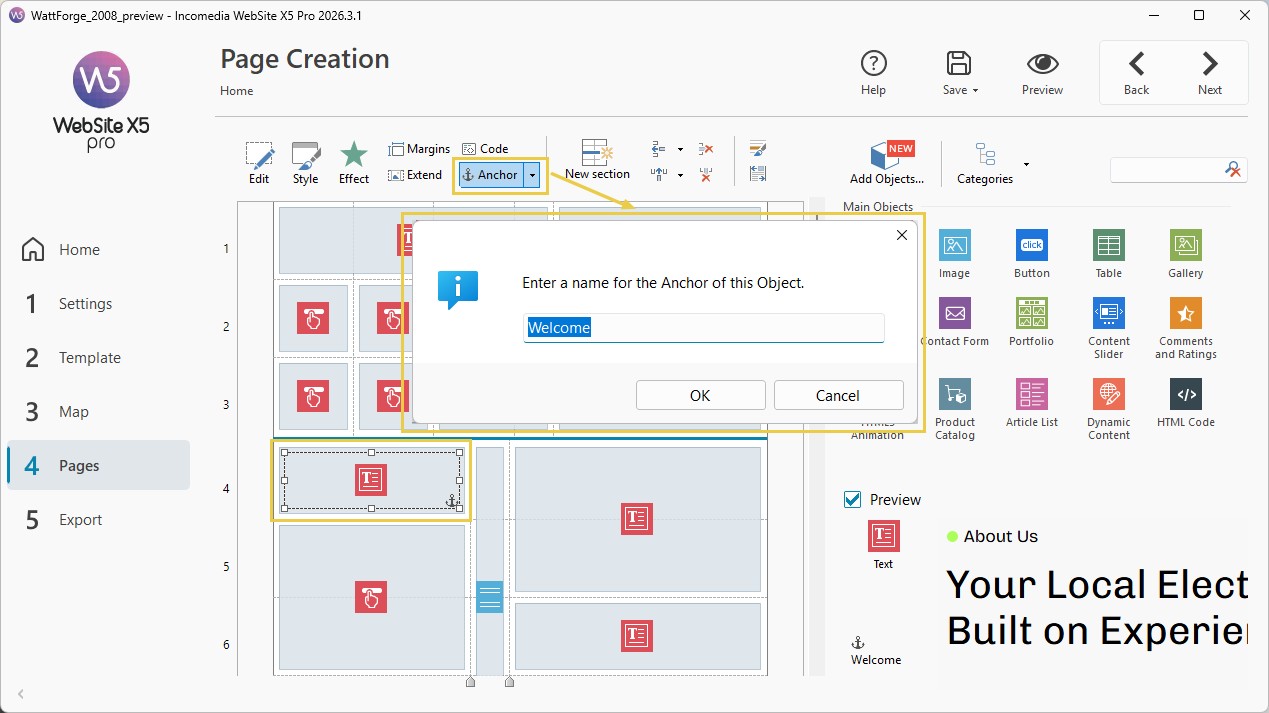
When the Object associated with the Anchor is in the first Row of the Section, the link takes the visitor to the beginning of the Section itself. This way, when a menu item is clicked, the visitor is taken correctly to the beginning of the corresponding area.
#tip - For more information, see Anchors. How do you create links to specific points on a page?
4. Link the menu to the Sections
Now you need to link the menu items to the corresponding Anchors.
This step allows the menu to take the visitor automatically to the correct section of the page.
To link, for example, the “Welcome” item:
- Go back to Step 3 - Sitemap Creation.
- Select the "Welcome" Level.
- Click the Properties button.
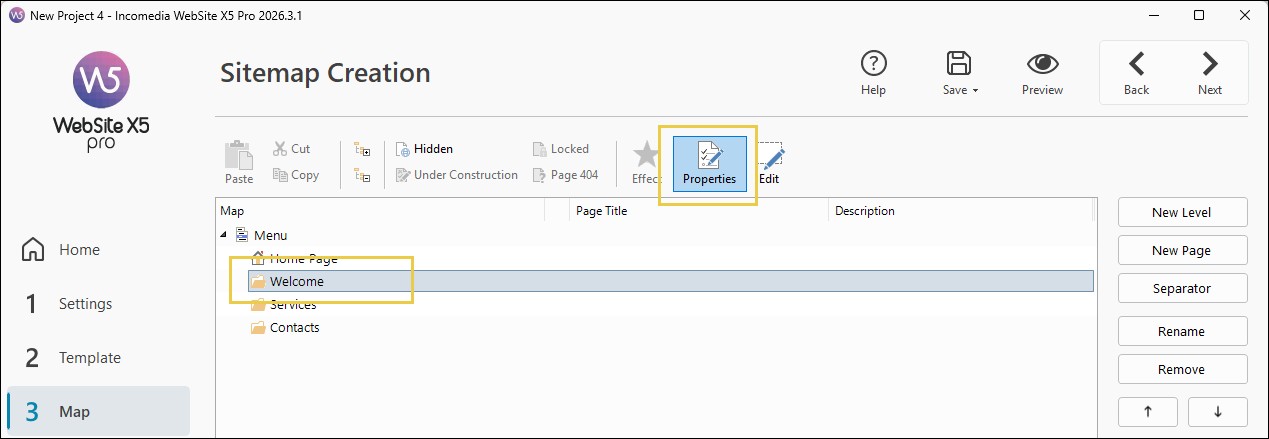
- In the Level Properties window, click
 Link.
Link. - In the Link window, select Website Page.
- Choose the Home Page.
- In the Internal Page Anchor field, select the “Welcome” Anchor.
- Confirm by clicking OK.
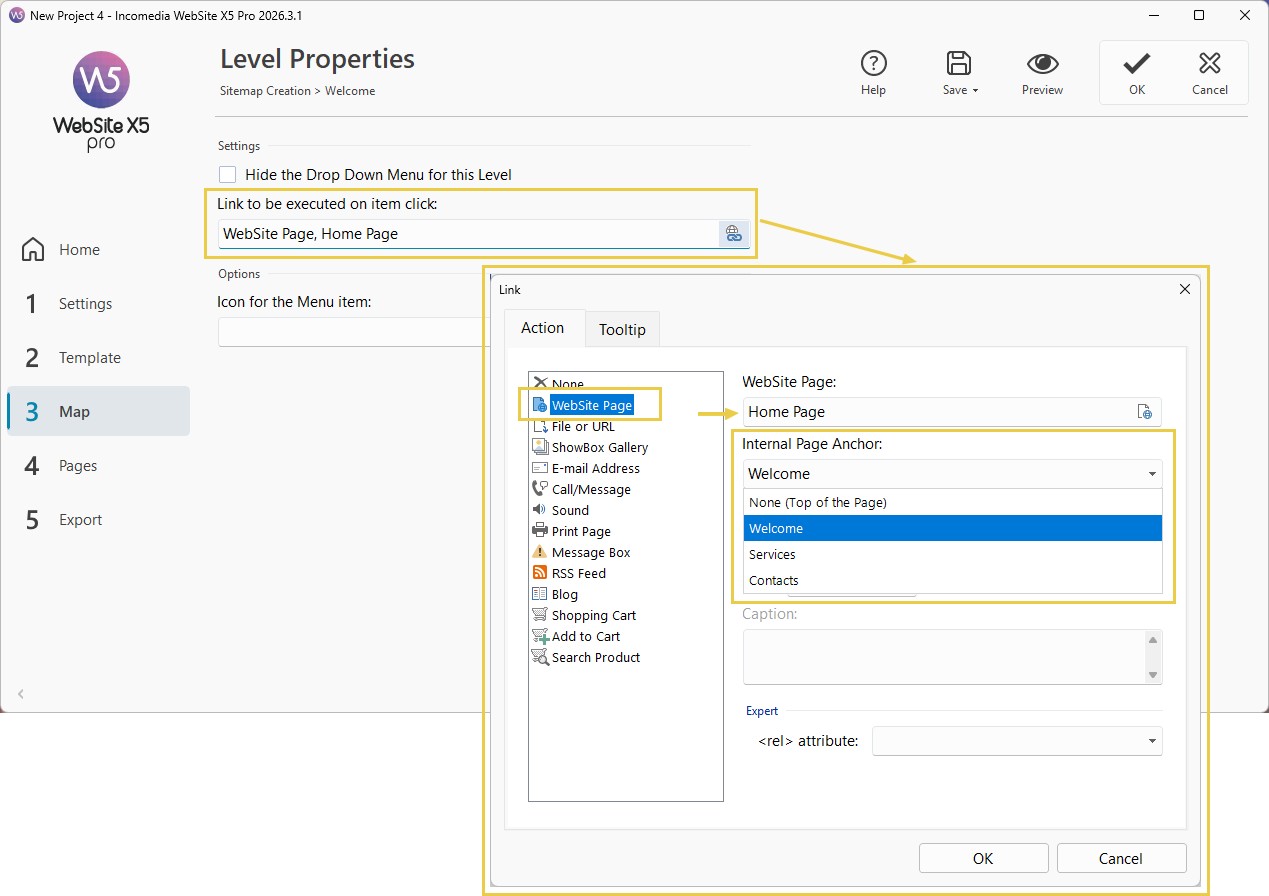
Repeat the same steps to link the "Services" and "Contacts" Levels to the corresponding Anchors.
Your One Page website is now ready. When visitors click a menu item, the page will scroll automatically and take them directly to the correct Section.
#tip - Sticky Bar. If the website is particularly long, you can further improve the navigation experience by using a Sticky Bar to keep the menu visible at all times while scrolling. For more information, see: Sticky Bar. How do you create a navigation bar that is always visible while scrolling?
#tip - Full Height. If you want to create slide-style navigation, you can also use the Full Height function. For more information, see: Full Height. How do you create slide-style page scrolling?).
Practical tips
A One Page website works well when the contents are organized clearly, concisely, and are easy to browse.
For better results:
- limit the number of Sections;
- use short, easily recognizable titles;
- organize the contents following a logical sequence;
- keep the menu simple;
- add clearly visible calls to action;
- use lightweight, optimized images;
- create a clear visual separation between the different Sections;
- always check how the website behaves on smartphones.
In general, a One Page website is particularly effective when visitors need to quickly achieve a specific goal, such as:
- contacting you;
- requesting information;
- booking a service;
- discovering a business or product.
In summary
With WebSite X5, you can easily create a One Page website using a single Home Page organized into Sections and linking the menu to the different areas through Anchors.
Each Section can have a structure suited to its contents, and visitors can reach it directly through the corresponding navigation items.
This way, you can build a website that is easy to explore and particularly suitable for projects that need to present a limited amount of information along a single path.