Compatibility:
WebSite X5 Evo and Pro
Links inserted in a text must be easy to recognize: if they blend in with the rest of the content, visitors may not realize that they are clickable.
In WebSite X5, you can define the color, style, and behavior of text links for the entire project and, when needed, create a different style only for some contents.
How to make text links recognizable
To make sure a link is clearly distinguishable from the rest of the text, consider these aspects in particular:
- Color - Choose a color that makes the link easy to recognize, but do not rely exclusively on color to distinguish it: color-blind people, for example, may not perceive any difference.
- Style - You can use, for example, underlining, bold, or other graphic features. Underlining is a very common convention and helps identify a link immediately.
- Contrast - Precisely because it needs to be easy to identify, make sure the link remains readable against the background and surrounding text.
- Behavior - You can differentiate the appearance of the link when the pointer passes over it or after it has already been visited.
Feel free to experiment with original solutions, but remember that the goal is always to keep links easy to recognize and consistent with the website design.
#tip - Accessibility. Managing color contrast and expected behavior is particularly important when dealing with the accessibility of Web pages. You can learn more by reading the guide How to check color contrast to ensure web accessibility.
How to set the link style for the entire website
Text links already have a style defined by the Template chosen for the project. You can keep the proposed style or change it.
To customize the general style:
- Go to Step 2 - Template.
- Open Text, Field and Button Style.
- From the page element menu, select Link.
- Configure the 3 available states one at a time:
- Active;
- Mouse Over;
- Already Visited.
- For each state, set the available characteristics, such as color, style, and pointer.
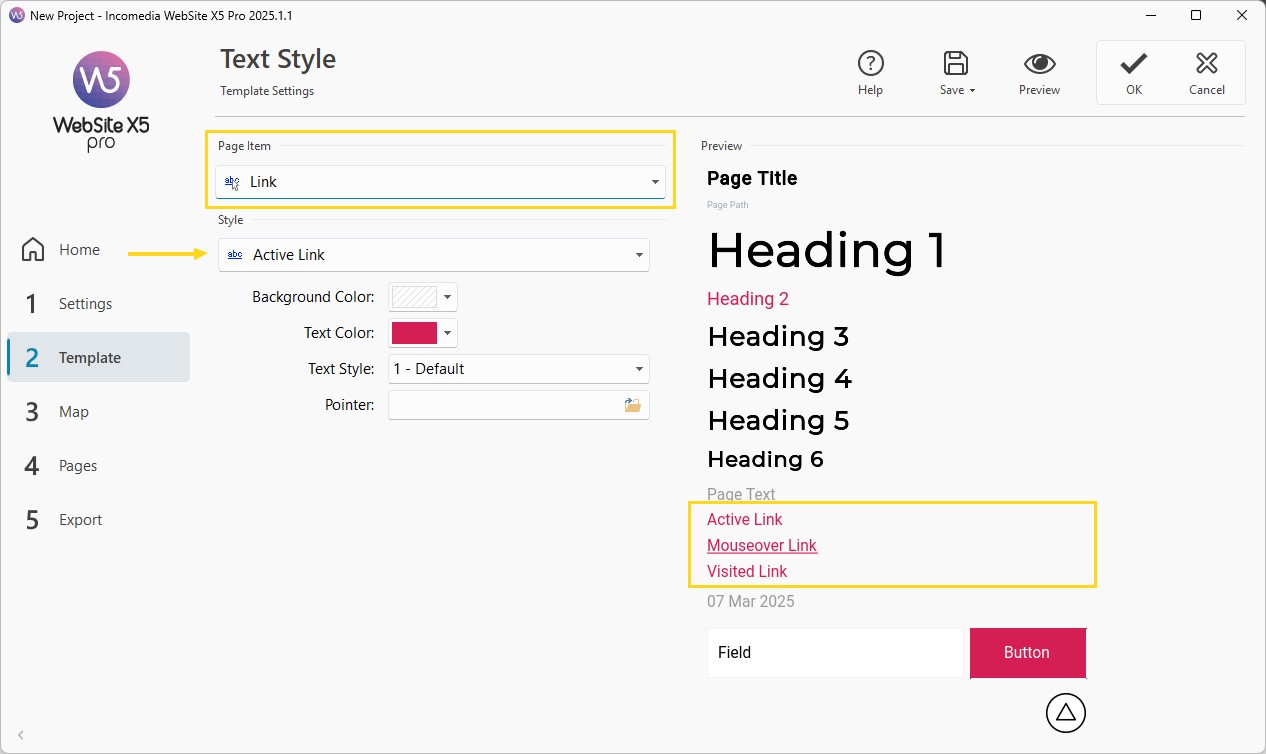
The changes are automatically applied to the project's text links, without having to edit the individual links.
How to customize only some links
In some cases, it can be useful to use a different style only in a specific area of the website.
Imagine, for example, that your website has a light background in the main body of the pages and a dark background in the footer. For the footer links, you will need to use different colors from those defined for the entire website. In this case, you can define a specific style for the links contained in that single Object.
- Open the Text Object you want to work on.
- Click the
 Link Style button on the Toolbar.
 - In the window that opens, activate Custom Style.
- Set the text and background colors for the different link states.
- Confirm.
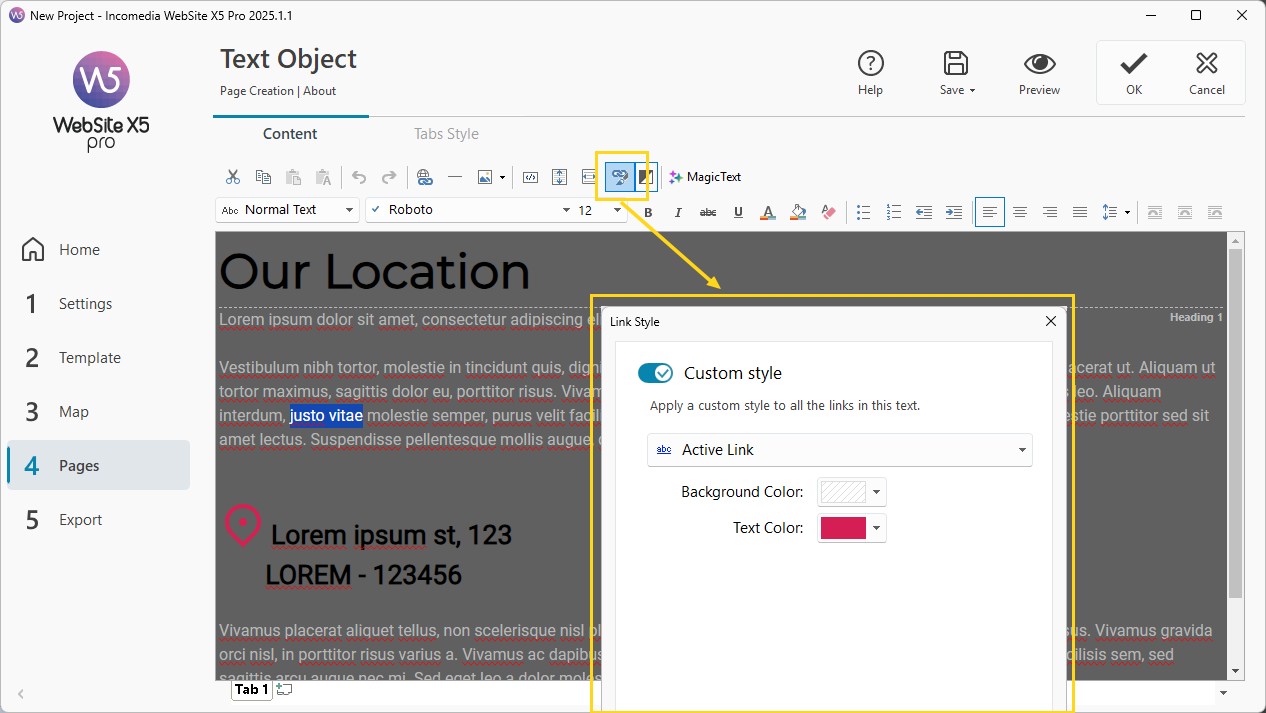
The custom style only affects the links in the content you are working on and does not change the general style defined for the project.
The Link Style command is available in the Text Object editor, the Table Object editor, and the Content composition window for Blog articles.
#tip - If you still need to create the link, see Links. How do you create a link?