Compatibility:
WebSite X5 Evo and Pro
Sometimes the text of a Link is not enough to clearly explain what will happen when the visitor clicks. In these cases, you can add a Tooltip, that is, a short message that appears when the mouse pointer passes over the link.
You can use it, for example, to indicate in advance that the Link will lead to another Page, open an image, or display a resource.

In WebSite X5, you need to manage two aspects:
- the general style of the Tooltips, which applies to the entire project;;
- the content displayed by the Tooltip associated with each Link.
How to define the Tooltip style
All the Tooltips in a Project share the same graphic settings.
To customize them:
- Go to Step 2 - Template.
- Open Tooltip on Mouseover.
- Use the available options to define the appearance of the Tooltips, adjusting, for example:
- arrow type;
- background color;
- border;
- text appearance;
- appearance effect.
- Confirm the changes.
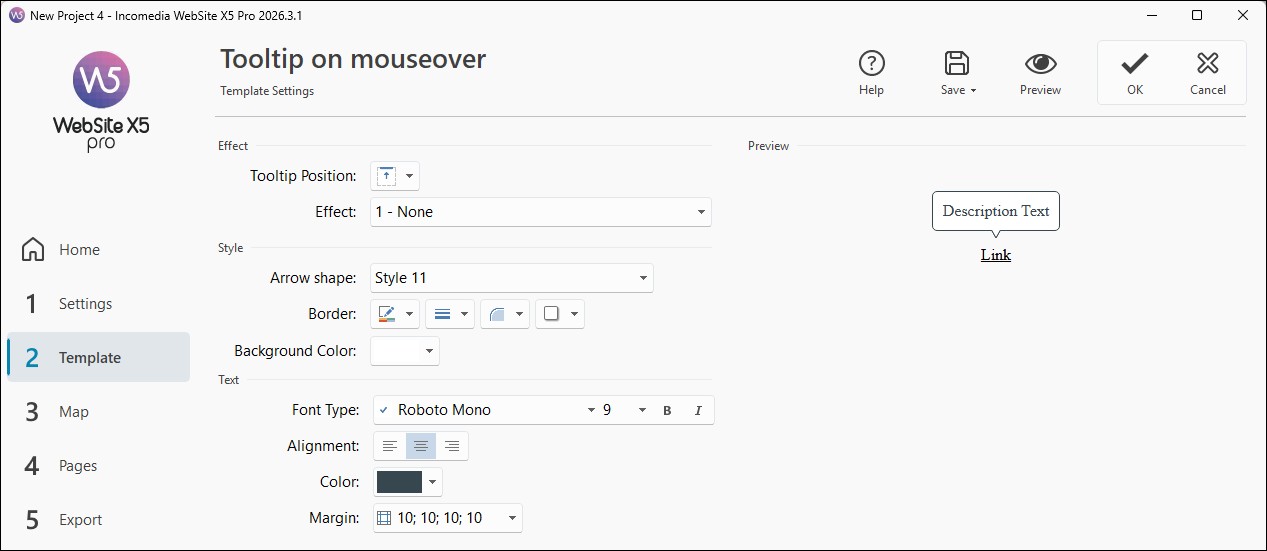
The settings you define are used for all the Tooltips in the project.
How to add a Tooltip to a Link
The Tooltip content must instead be defined for the individual Link.
To add it:
- Create or edit the Link you want to work on.
- In the Link window, open the Description section.
- Enter the text you want to display in the Tooltip in the appropriate field.
- Set the width of the Tooltip.
- If you want, also add an image and specify its size and position.
- Confirm with OK.
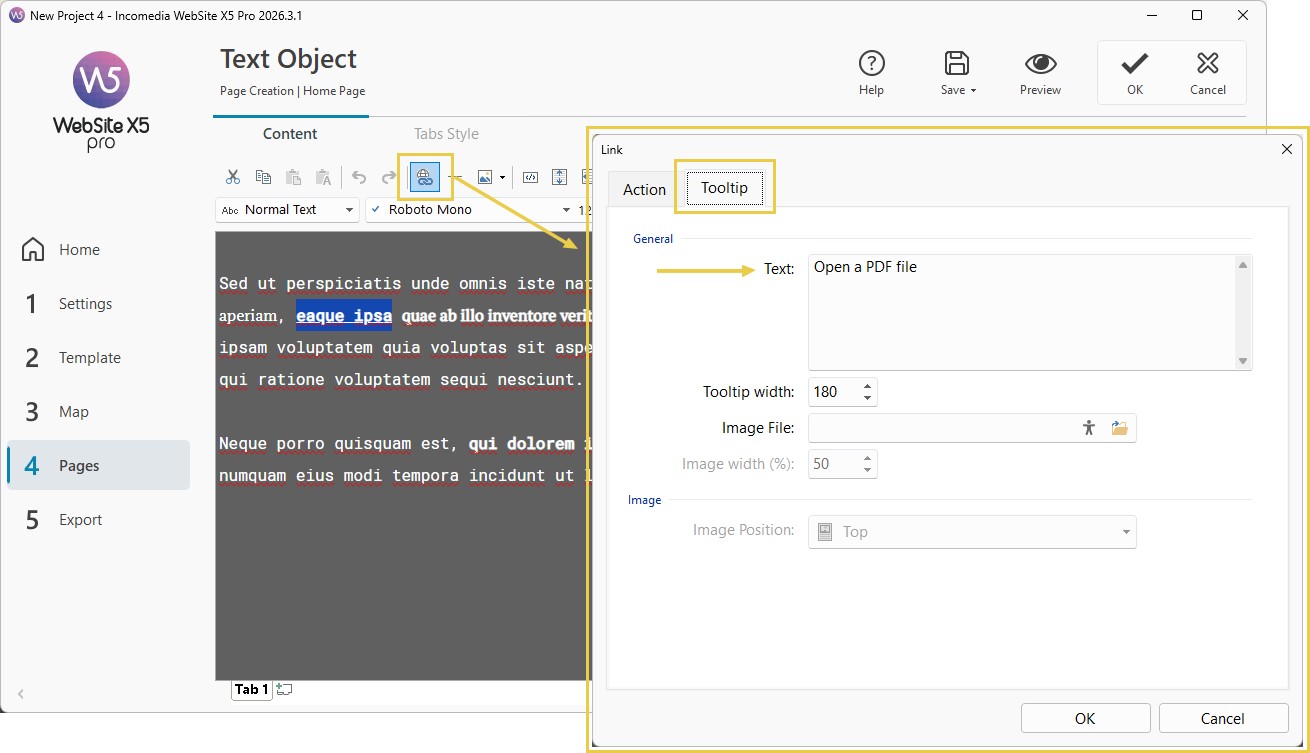
If you do not enter either text or an image in the Description section, no Tooltip is displayed for that Link.
What to write in a Tooltip
A Tooltip is most useful when it adds information that is not already clear from the Link.
You can use it, for example, to:
- preview the link destination;
- clarify which action will be performed;
- provide a short additional indication about the linked content.
Keep the message short and direct: the Tooltip should help users better understand the Link without replacing the main information already available on the Page.
#tip - Touch devices. Tooltips based on mouseover are mainly intended for devices equipped with a pointer. Therefore, do not rely on a Tooltip for information that is essential to understanding or using the Link.
#tip - If you still need to create the link to which you want to associate the Tooltip, see Links. How do you create a link?