Compatibility:
WebSite X5 Evo and Pro
When presenting a topic on a Page, it can be useful to direct the visitor to another content on the Website: for example, from a short description of a service you can create a link to the Page that presents it in detail.
In WebSite X5, you can do this by creating a text link and choosing one of the Pages included in the Map as the destination.
How to link a text to another Page
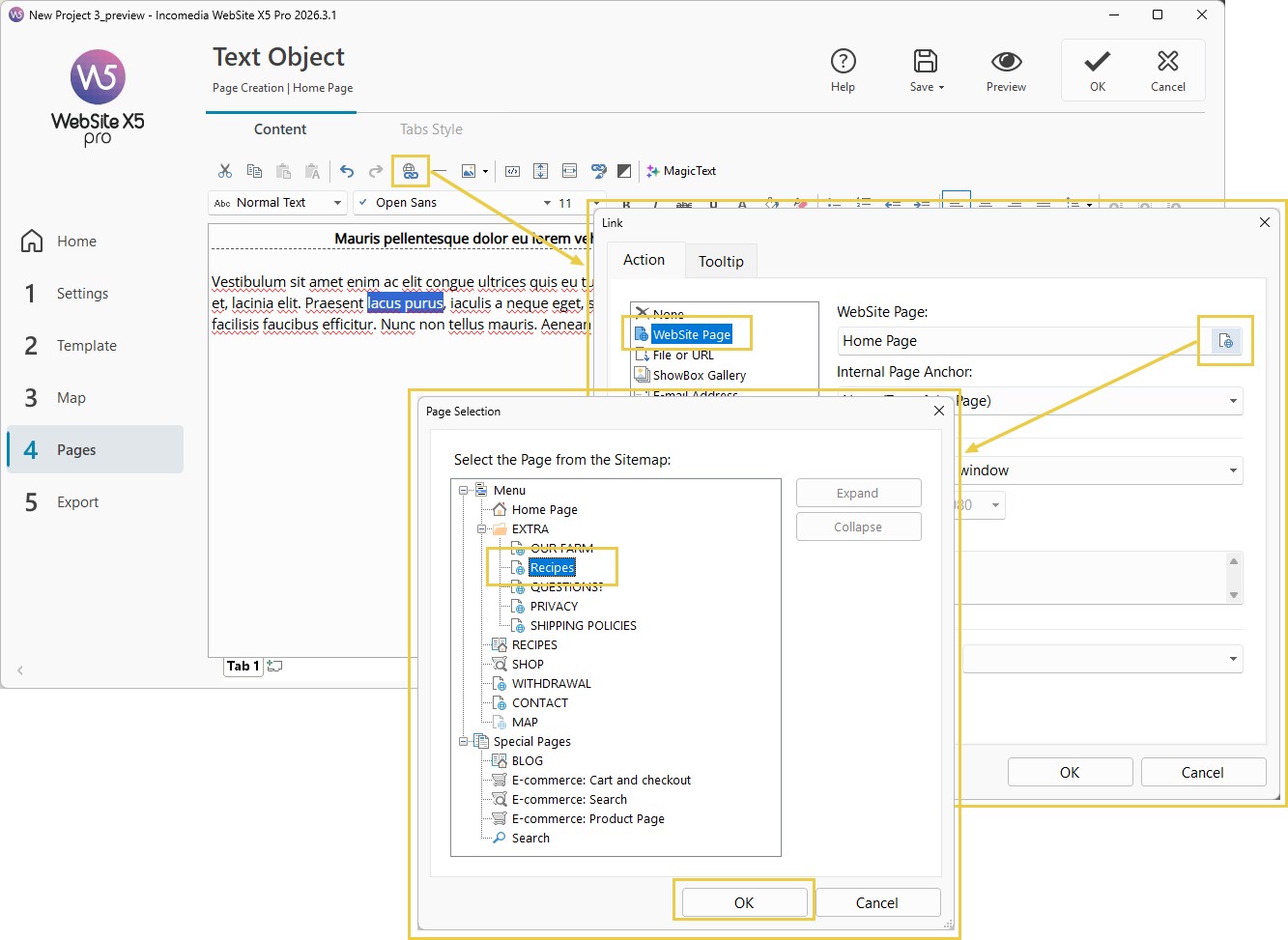
To create a text link between two pages of the website:
- Open the Text Object you want to work on.
- Select the word or phrase you want to make clickable.
- Click the
 Link button to open the corresponding window.
 - Select the Website Page action.
- Click the
 button to display the Map and select the page you want to link to.
 - Specify how the linked Page should be opened.
- If you have specific requirements and know how to use the HTML <rel> attribute, you can also set its value.
- Confirm with OK.
How to choose where to open the linked Page
When setting the Link, you can decide how the destination Page should be displayed.
Depending on the available options, you can choose to open it:
- in the same Browser window;
- in a new window;
- in a ShowBox window;
- in a PopUp window, specifying its size.
Choose the option that best suits the type of content and the navigation you want to create.
For advanced users: how to set the rel attribute
When creating a Link, you can also specify the <rel> Attribute, if necessary.
In HTML, rel is used to indicate the relationship between the current Page and the linked resource. Depending on the value used, it can provide useful information to the Browser or search engines and can be used, for example, to characterize certain types of links.
WebSite X5 lets you choose the attribute value from those available in the Link window.
#tip - This is an advanced setting: if you do not have a specific need, you can leave the default value.
#tip - Links to specific points. If you do not simply want to open a Page but take the visitor directly to specific content within it, you can use an Anchor. For more information, see Anchors. How do you create links to specific points on a page?
#tip - For an overview of the different types of links available, see Links. How do you create a link?